Data Pool
The Data Pool uses functional configuration to make data from anywhere in the database readily accessible in the form. Once records and our queries are added to the data pool, smart sources are automatically generated and can be used throughout GT Setup Tables.
Navigation
The Data Pool component is located in Manage GT eForms 3.x > GT Functional Setup > eForm Parts Gallery > Data Pool
It can also be accessed using quick links throughout the GT Framework. The following sections will explain how to locate those quick links.
Form Setup - Data
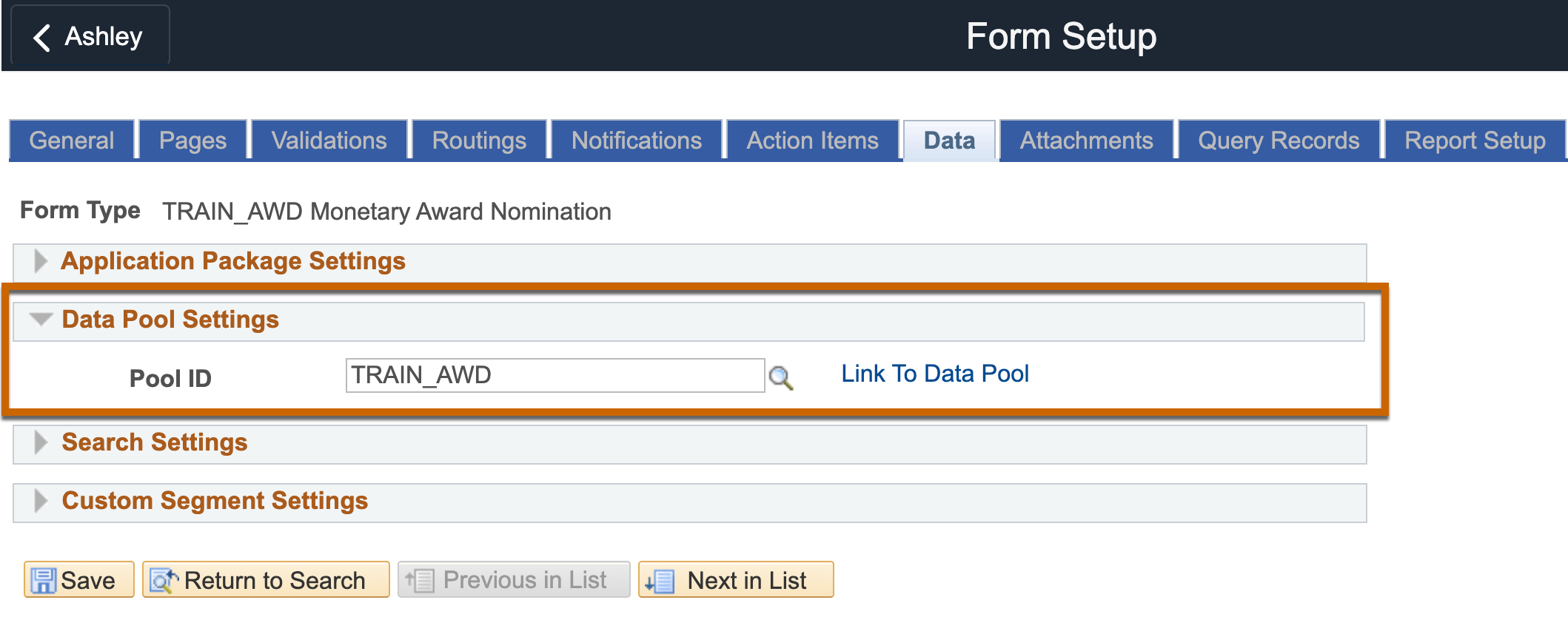
The Data Pool ID is set on the data tab in Form Setup. The data pool cannot be accessed if Data Pool ID is blank. Once the Pool ID is set, the ‘Link to Data Pool’ will open the Data Pool in a modal window.
Data Pool Records Tab
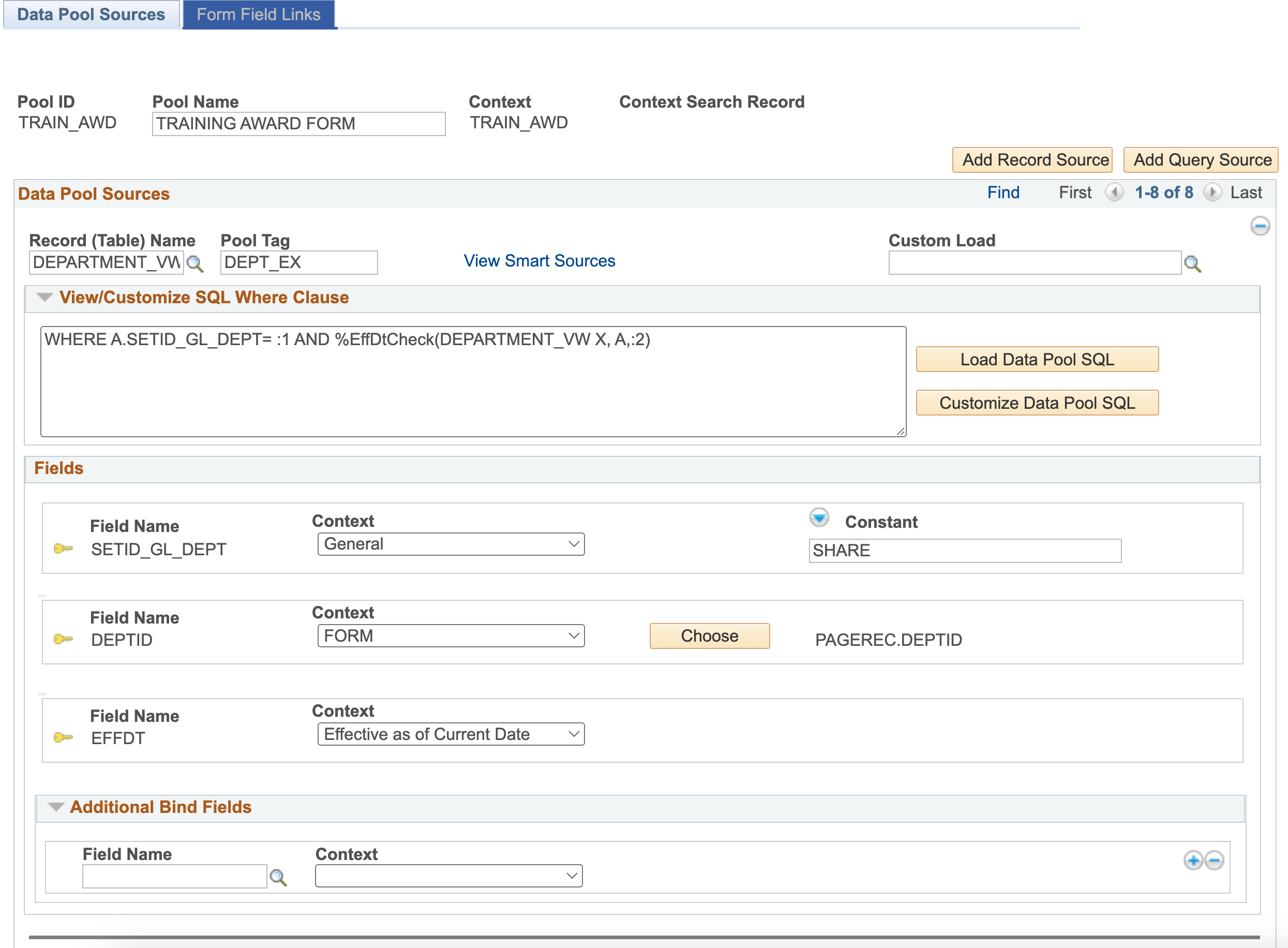
| FIELD | VALUE/USE |
|---|---|
| Pool ID | Displays the Data Pool ID. |
| Pool Name | Allows entering a description for this Data Pool ID. |
| Context | Displays the context for the Form Type. |
| Context Search Record | If a search record is being used for the Data Pool’s form type, it shows here. |
| Add Record Source button | Creates a new data source to add a record to the data pool. |
| Add Query Source button | Creates a new data source to add a query to the data pool. This button is only available for Helium forms. See additional information below in the Information on Using Queries in Data Pool section. |
Data Pool Sources
| FIELD | VALUE/USE |
|---|---|
| Record (Table) Name or Query Name | Select the desired PS record or query. Note: saved query needs to be a public, process query to appear in the list. |
| Pool Tag | Unique name for the record/query inside the Data Pool. This name is used to reference the record in Data Pool smart sources. It should not match the record tags of any existing segments and must not match another Data Pool record/query in the current form type. |
| View Smart Sources | Click link to see a list of all Smart Sources associated with that Data Pool record tag. Note: this will only return values after adding a record/query to the data pool and running the form build. See additional information in the 'View Smart Sources' section below. |
| Custom Load | Links custom code to the record that allows for the population of the record if it is used as a grid. A technical resource must create the code before it can be used, else this field should be left blank. |
View Smart Sources

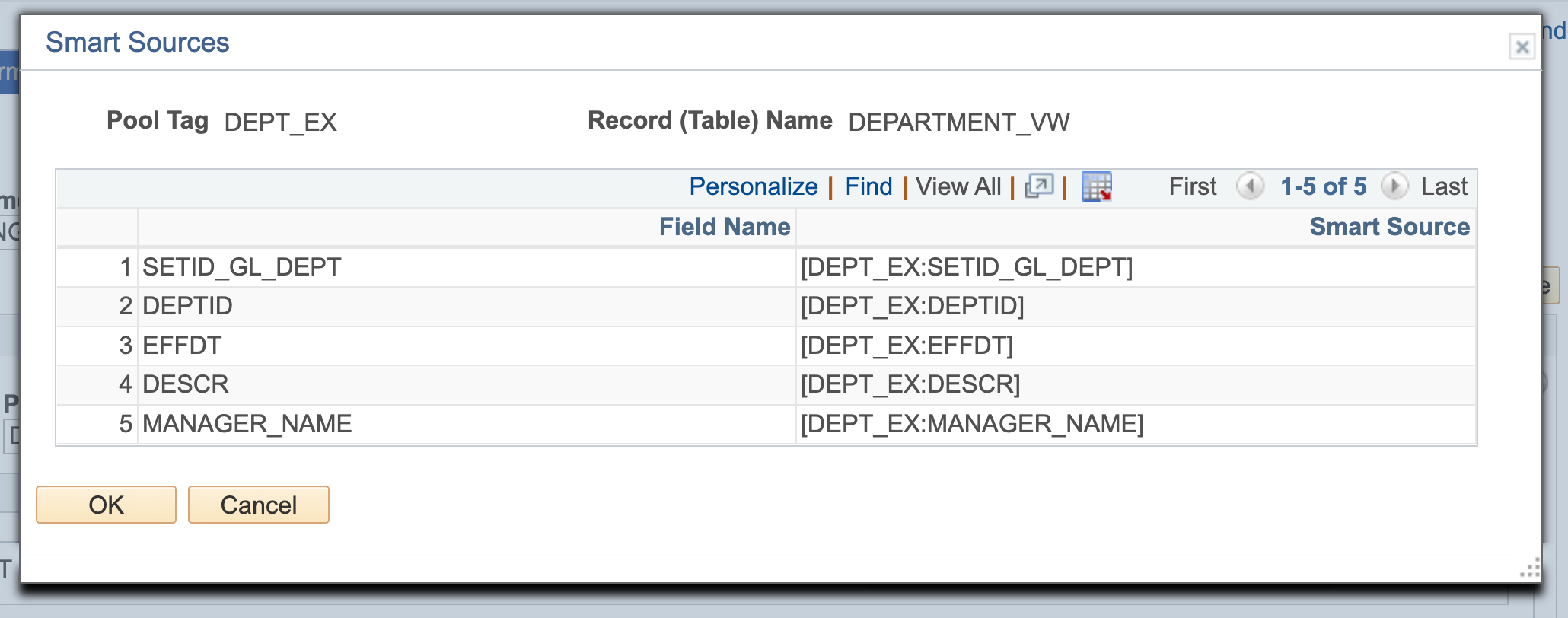
| FIELD | VALUE/USE |
|---|---|
| Field Name | Field name from the record or query added to the data pool |
| Smart Source | The syntax/name of the Smart Source associated with the record field |
View/Customize SQL Where Clause
For records only, the option is available to see the SQL from the record and provides the ability to update the SQL.
| FIELD | VALUE/USE |
|---|---|
| Where Clause (text box) | View and/or edit the WHERE clause of the SQL statement that will run based on the configuration for the data pool source |
| Load Data Pool SQL | Click button to load in the WHERE clause the SQL will run based on the record and keys joined. Note: the SQL does not include the main key (the lowest level key) on the record. If you only have one key, when you load the SQL, it will populate with “(blank)”. See additional information below in the Information on View/Customize SQL Where Clause section. |
| Customize Data Pool SQL | Click button to make changes to the Where Clause section |
Fields
| FIELD | VALUE/USE |
|---|---|
| Field Name | Lists each key field for the source. Fields are automatically populated once a value is entered into the Record (Table) Name/Query Name field. For queries, these keys will be any prompt field in the criteria of the query and at least one prompt is required. |
| Context | Form: Join to the data pool using a field from the form. General: Join to the data pool using a constant value or smart source. Search Field: Join to the data pool using a field from the configured search record. *Ignore: Do not join this key. Can only be used for records intended to populate grid segments to allow multiple rows of data to be returned and populate the entire grid. *Effective as of Current Date: For EFFDT key fields, returns the max current effective dated row. *Max Effective Sequence: For EFFSEQ key fields, returns the maximum effective sequence. * Options only available for record sources on Helium forms |
| Choose | Click button to open search window to select value that goes with the Context. Note: Button only shows when Form or Search Field context is selected. |
Additional Bind Fields
Allows additional binds / criteria to be provided in addition to the defaulted key fields. This section is only available for records, not queries.
| FIELD | VALUE/USE |
|---|---|
| Field Name | Select additional fields available on the record. |
| Context | Form: Join to the data pool using a field from the form. General: Join to the data pool using a constant value or smart source. Search Field: Join to the data pool using a field from the configured search record. |
| Choose | Click the button to open a search window and select a value that goes with the Context. Button only shows when Form or Search Field context is selected. |
Not Pictured – Run Form Build Link: If you navigated to the Data Pool outside of Form Setup and made changes to the page, you need to click this link to go to the Form Build page and update the form before testing it. Clicking the link opens the Form Type Build in a new modal window. Refer to Form Type Build documentation for additional information.
Form Field Links Tab
This tab is used as a fast way to populate the ‘Initialize from” column and/or “Update when This Source Changes” column for many fields at one time.
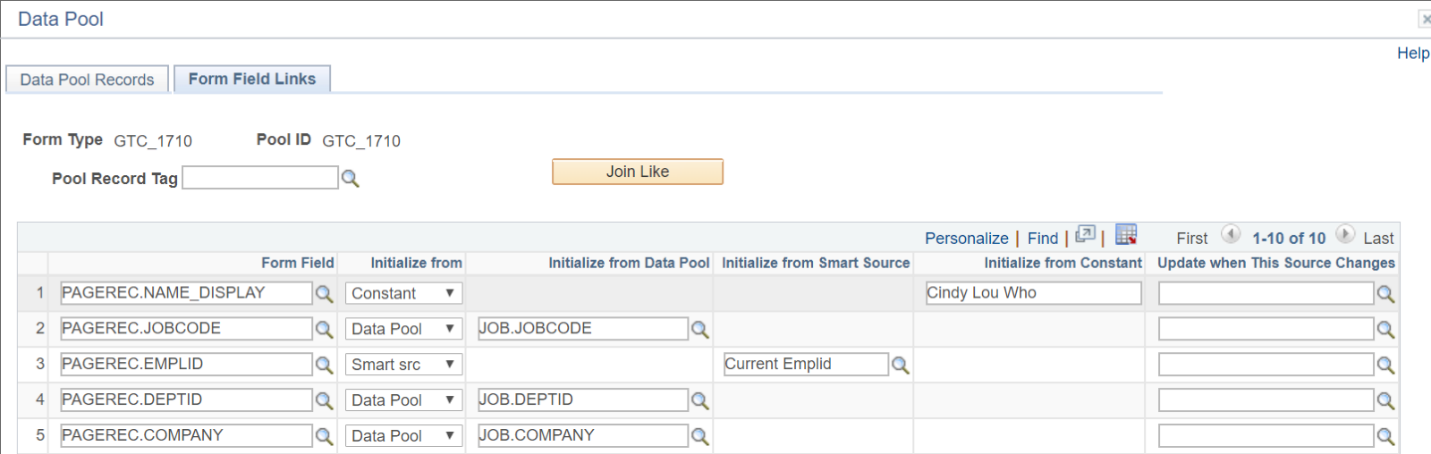
| FIELD | VALUE/USE |
|---|---|
| Form Type | Form Type ID of current Data Pool displayed |
| Pool ID | Displays the Data Pool ID |
| Pool Record Tag | Record from the data pool that should be used to match fields |
| Join Like | Populates fields that are on the selected Pool Record Tag and the form |
| Form Field | Lists all the fields that exist on a segment in the form. Populates automatically. |
| Initialize from | Dropdown with the options to Select Data Pool, Constant, or Smartsrc. The value selected in this column will open the associated initialize column for editing. See below. |
| Initialize from Data Pool | Column that appears when the selected initialized value is “Data Pool.” Use the prompt to search on data pool fields. The form field on this row will be populated with the configured data pool value on form load. |
| Initialize from Smart Source | Column that appears when the selected initialize value is “Smartsrc.” The field on this row will be populated with the selected smart source. |
| Initialize from Constant | Column that appears when the selected initialize value is “Constant.” The field on this row will be populated with the constant value configured in this column. Note that certain data formatting will be enforced where constants are configured. Date constants will be converted to yyyy-dd-mm. Other improperly formatted constants will result in an “Invalid Value” shown in the field or an error on form load. |
| Update When This Source Changes | The field on this column will be populated with the value of the data pool smart source or form smart source if another field in the data source changes where there is a dependency |
Not Pictured – Run Form Build Link: If you navigated to the Data Pool outside of Form Setup and made changes to the page, you need to click this link to go to the Form Build page and update the form before testing it. Clicking the link opens the Form Type Build in a new modal window. Refer to Form Type Build document for additional information.
Form Builder Information
Information on Using Queries in Data Pool
Queries can be added to the data pool on Helium forms by clicking the “Add Query Source” button at the top of the Data Pool Records tab.
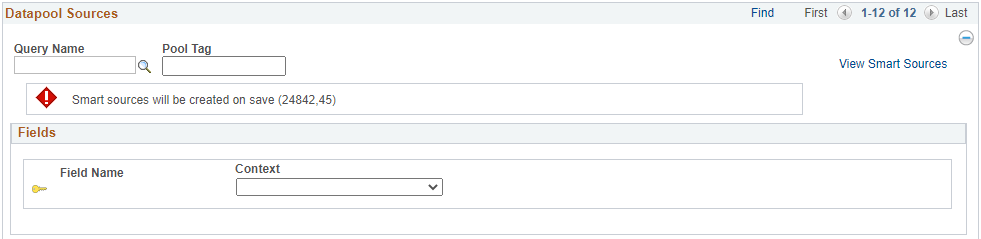
There are several considerations to remember when creating a query that will appear in the Query Name lookup field in a data pool.
-
For a query to be available for use, you must save the query with the following settings:
-
Query Type = Process
- Note: Process queries override the automatic row-level query security logic that is applied to all other types of queries. For this reason, it is important to consider who should have access to sensitive data when your query is run and that the resulting data appears on your eForm.
-
Query Owner = Public
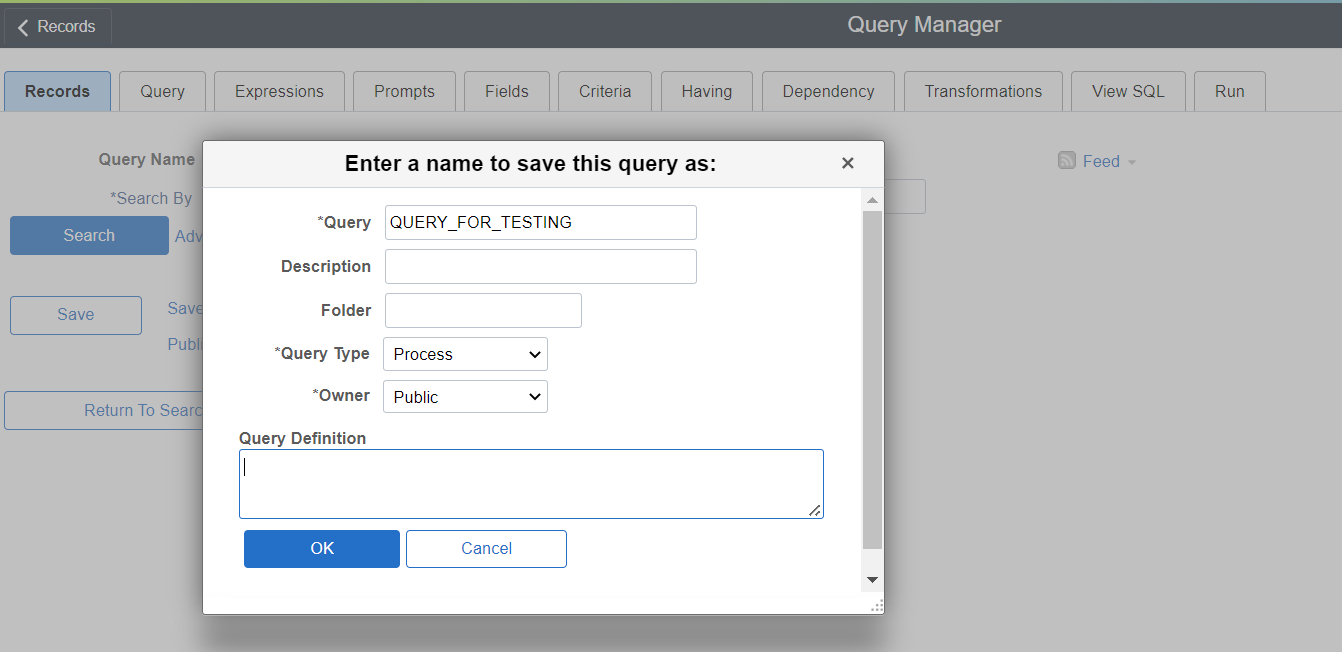
-
-
The saved query must contain at least one prompt in the query criteria. The prompt(s) in the query criteria will appear as keys in the Fields section for the Data Pool source.
- All keys must be satisfied in the data pool for the form to work. If you cannot satisfy a key, it should be removed as a prompt from your query or a different data pool source should be used.
-
All the fields selected to display in your query results will become Smart Sources that can be used on GT Setup Tables.
- Query sources can be used in the Initialize from Data Pool and Update when This Source Changes for both column and grid segments, as well as for Related Descriptions for column fields.
- Query sources can’t be used in the Prompt Setting for column or grid fields using a Prompt or Dropdown Field Display Type.
- Query sources can be used in other smart source locations, such as in email templates, visual ifs, rosters (workflow and notification), logic stacks, validation messages, and as smart sources to satisfy other data pool keys
- Note: data pool smart sources, in general, are not recommended for participation rosters as they typically rely on data that is not present outside of the form.
- Query sources can be used in the Initialize from Data Pool and Update when This Source Changes for both column and grid segments, as well as for Related Descriptions for column fields.
-
Query sources will not allow the View/Customize SQL or Additional Bind Fields sections to be used in the Data Pool. If you need to customize the SQL or additional key fields, please modify your saved query.
Information on View/Customize SQL Where Clause
For records that are added to the data pool using the Add Record Source button, the View/Customize SQL Where Clause section will appear.
The Load Data Pool SQL button can be clicked to view the where clause of the SQL from the record in the window. To customize the SQL, you can then click the Customize Data Pool SQL button. This will make the red “SQL Customized” text appear next to the Pool Tag.
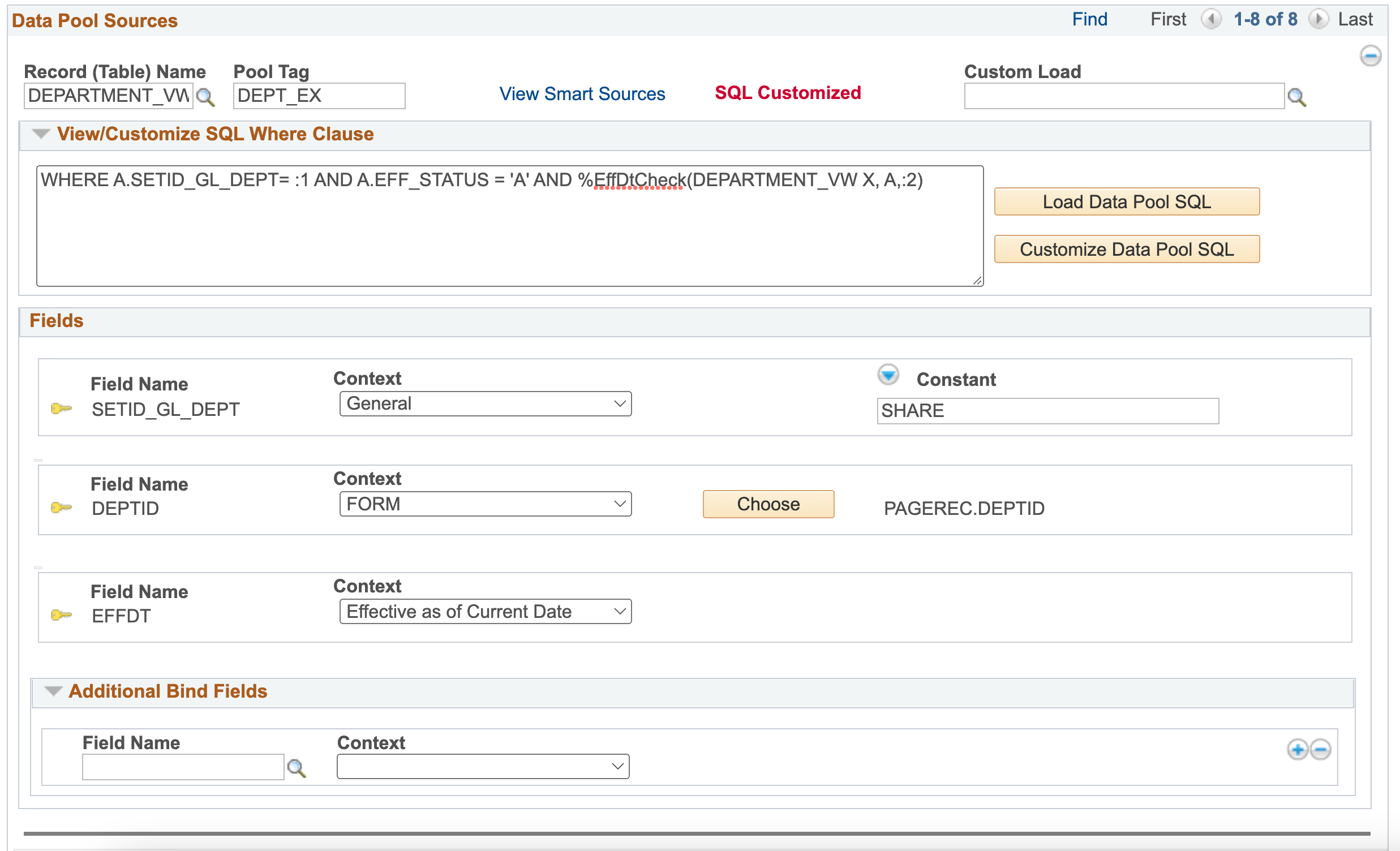
Please review the following rules that must be considered when customizing the SQL.
- The customized SQL statement must start with “WHERE”
- The selected table will have a universal alias of “A,” so all fields must be given the alias of A
- The lowest level key, excluding EFFDT or EFFSEQ, cannot be in the SQL
- The binds must match the order they appear in the Fields and Additional Bind Fields section, except for the main key (lowest level), which can’t be in the SQL
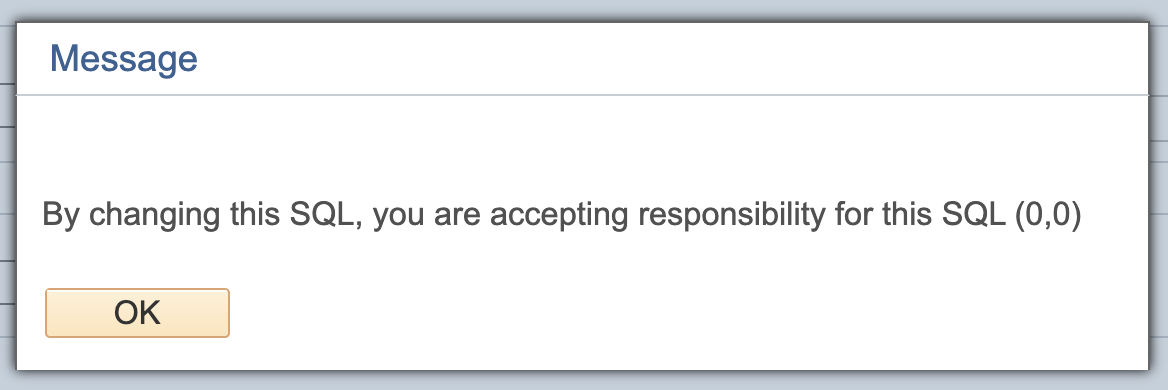
If you do change the SQL, a message will appear when you tab out of the window letting you know that the SQL has been changed.
Information on Populating Grid Segments
Grids can now be populated from the data pool using PeopleSoft records or Query sources. This can include row-level population and grid-level population. Row-level populate refers to having data appear in every row based on values within the row or default values, such as a constant value or a PeopleCode smart source. To do this, you will configure your Initialize From and Update when Source Changes fields just as you would with a column field.
The setup for grid-level population has a similar feel to column and row-level data pool setup, but with 2 important changes.
-
One consideration is if the data pool source has key fields that are related to your grid fields. When filling in the keys for a data pool entry, the standard objective is to populate the keys to retrieve one, and only one, row of data to populate the associated form fields. However, this behavior differs when the data is used for grid-level population. In this case, multiple rows of data may be returned. When using a record data source, all key fields must be filled in. If one of those key fields corresponds to grid fields that are expected to return multiple values, the key field Context should be set to “Ignore”. This allows the data pool to return multiple rows rather than restricting the result to a single record.
-
When you go to the Form Field Links tab to configure your grid fields to use data pool smart sources, you need to also specify the data pool record tag at the grid level. This is how you will indicate which data pool record should return a list of values instead of only returning a single value. In Form Field Links tab of the Data Pool window, find the row that represents the entire grid and configure it to initialize and/or update all rows in the grid based on the specified record tag.
See below for the following examples:
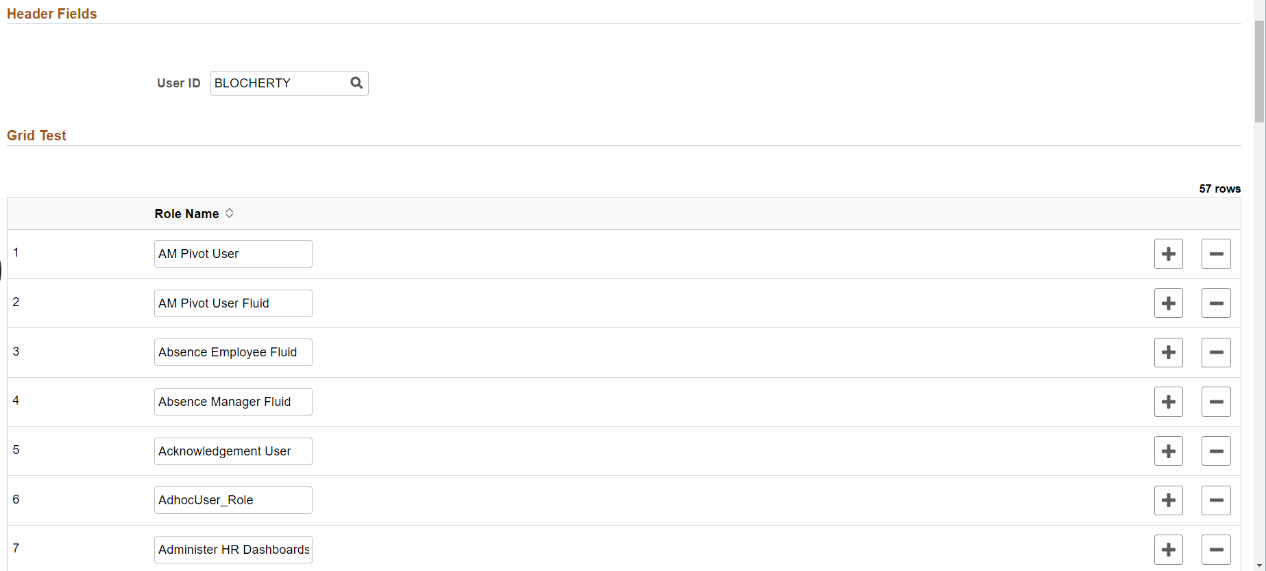
- Configure a grid segment to initialize with all the roles of a selected user based on an OPRID.
- Configure a grid so that when the OPRID of the selected user changes, the grid repopulates with the new user’s roles.
First, add a data pool source with PSROLEUSER as the record. The keys are ROLEUSER and ROLENAME. Set the ROLEUSER key to the OPRID field in the form, in this case PAGEREC.OPRID. The other key, ROLENAME, should have the Context “Ignore” so it can return multiple values to populate the grid.
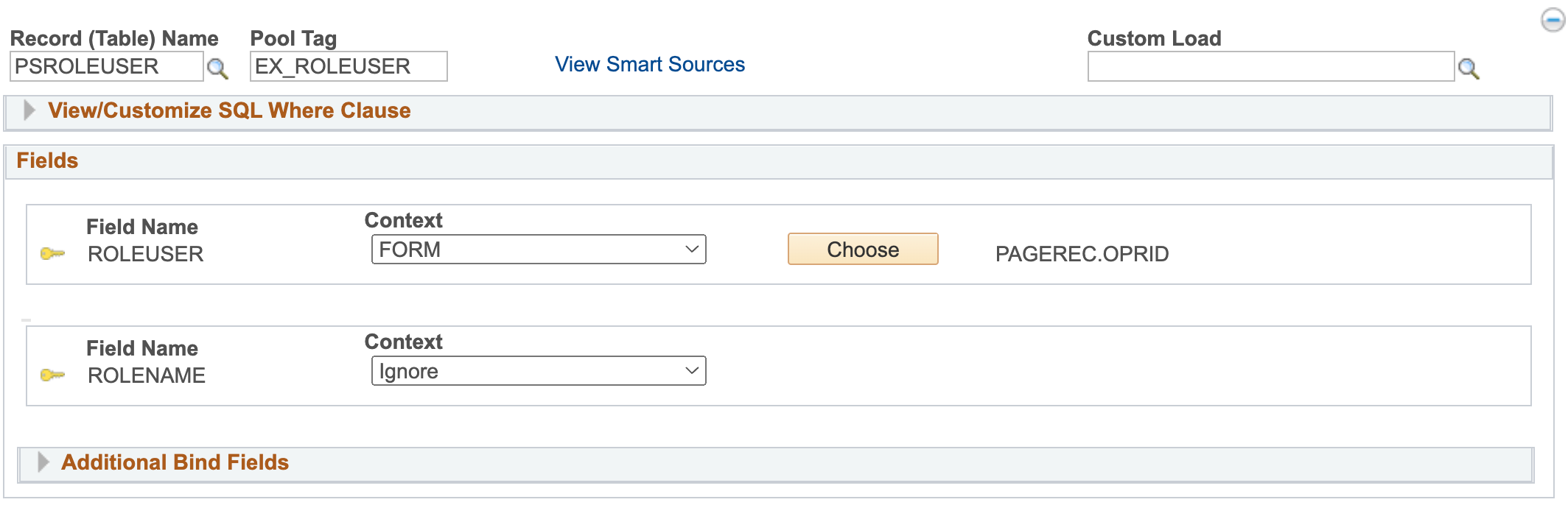
The example data source is given a Pool Tag of “EX_ROLEUSER,” and the grid to populate has a Record Tag of ROLEREC. In the Form Field Links tab, ROLEREC.ROLENAME can be set to "Initialize from" the Data Pool. The "Initialize from Data Pool" entry would be EX_ROLEUSER.ROLENAME. Additionally, the “Update when This Source Changes” entry can be set to EX_ROLEUSER:ROLENAME. At this point, the field behaves like a standard column segment field.
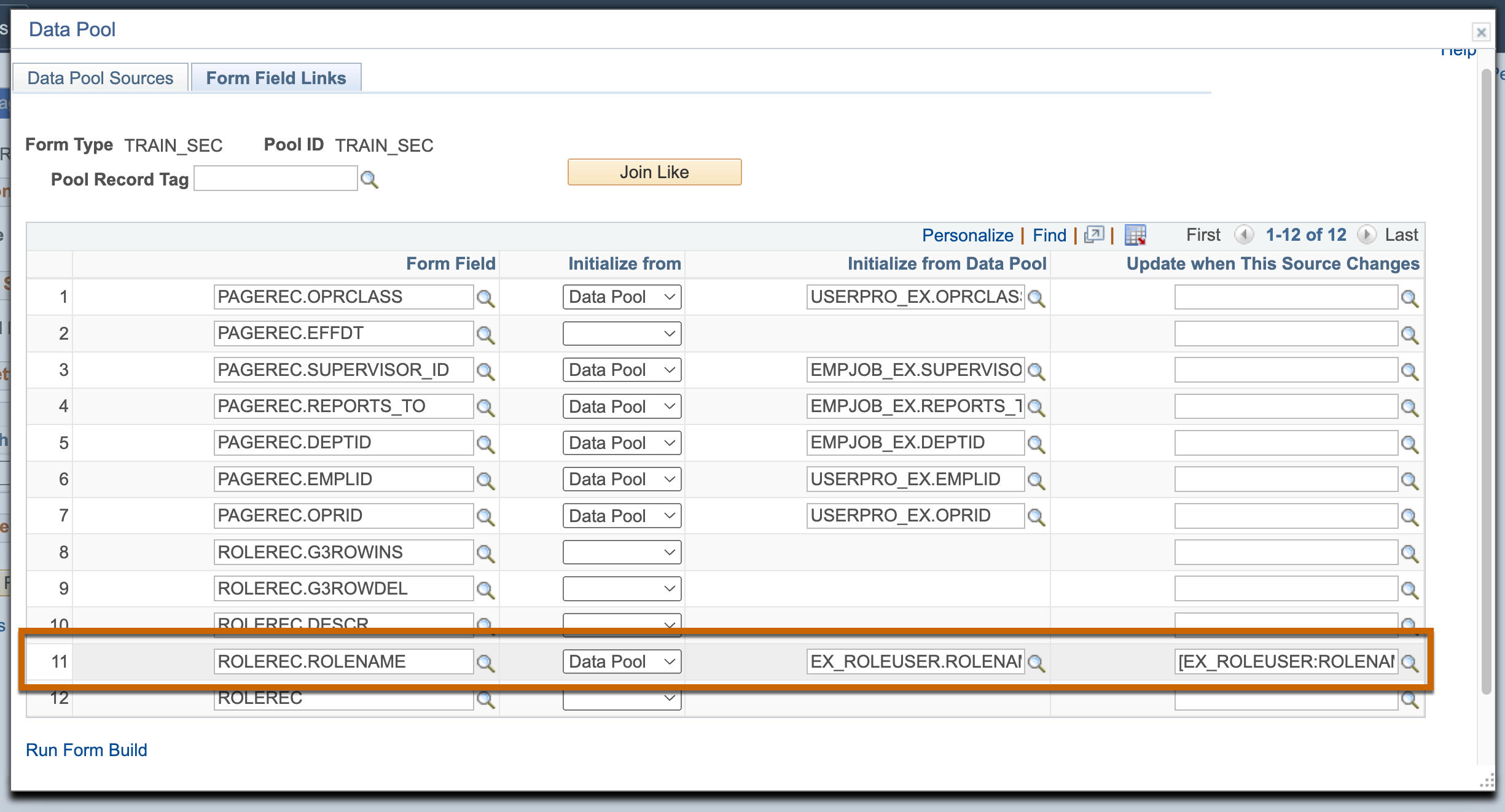
The only additional step needed to return multiple rows in a grid is to populate the grid-level reference, along with the individual grid fields. Notice that ROLEREC has an entry without an attached field; this represents the grid itself. The data pool also includes EX_ROLEUSER without an attached field, which signifies the entire EX_ROLEUSER data source.
To populate the grid, the "Initialize from Data Pool" and "Update when This Source Changes" should be set to EX_ROLEUSER.
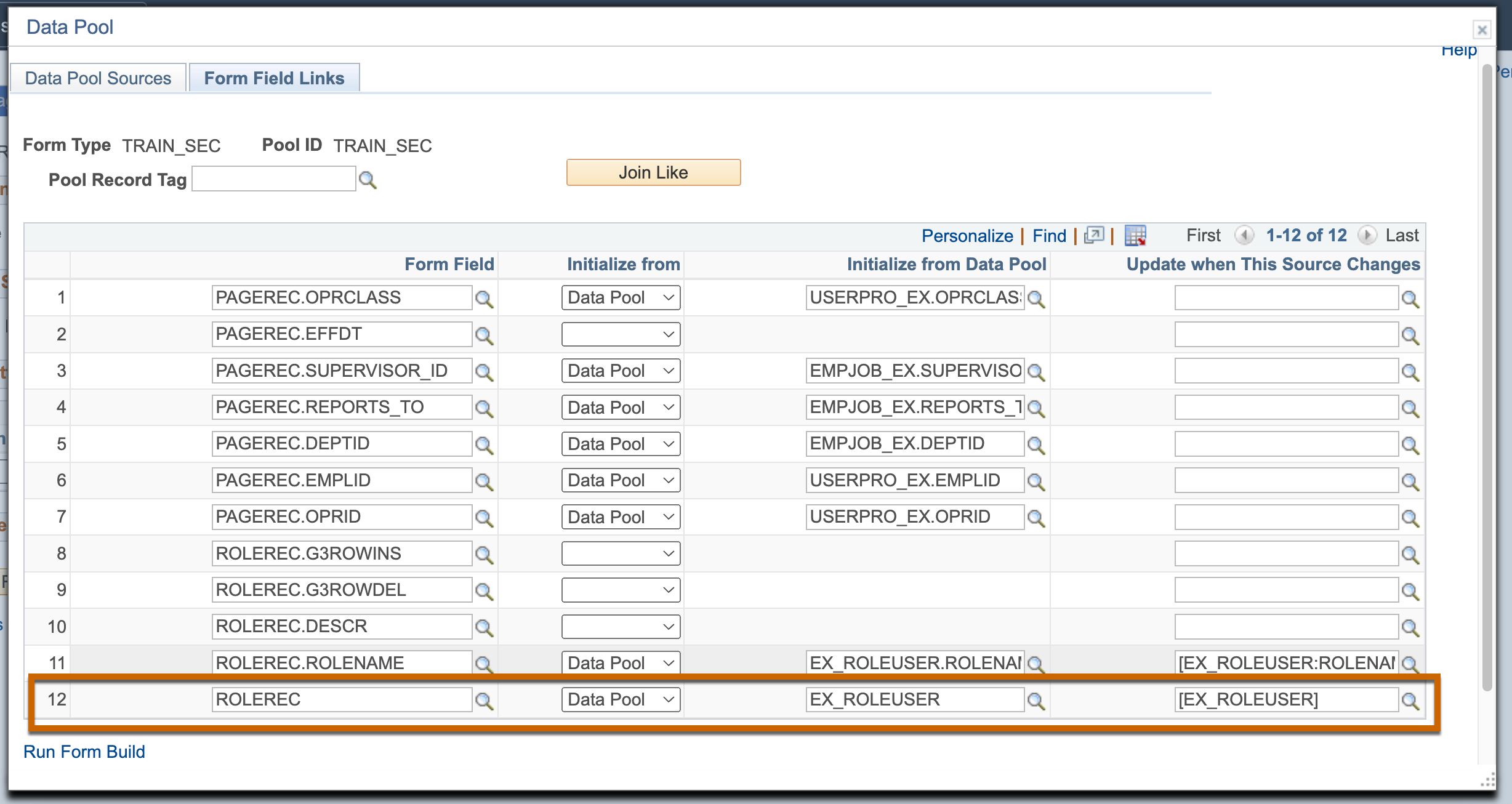
The grid will now return all roles for the user when the form initially loads and will update to show the roles of a different user if the OPRID is changed.