Deferred Mode
In Helium 3.50+, all fields are initially set to Calculated deferred mode, which means the framework automatically determines whether deferred mode should be on or off based on field dependencies. If a field has dependencies, deferred mode is calculated as Off, meaning the form will make a trip to the server to process dependent logic changes when a form user leaves the field. If a field has no dependencies, deferred mode is calculated as On, meaning the form will skip a trip to the server.
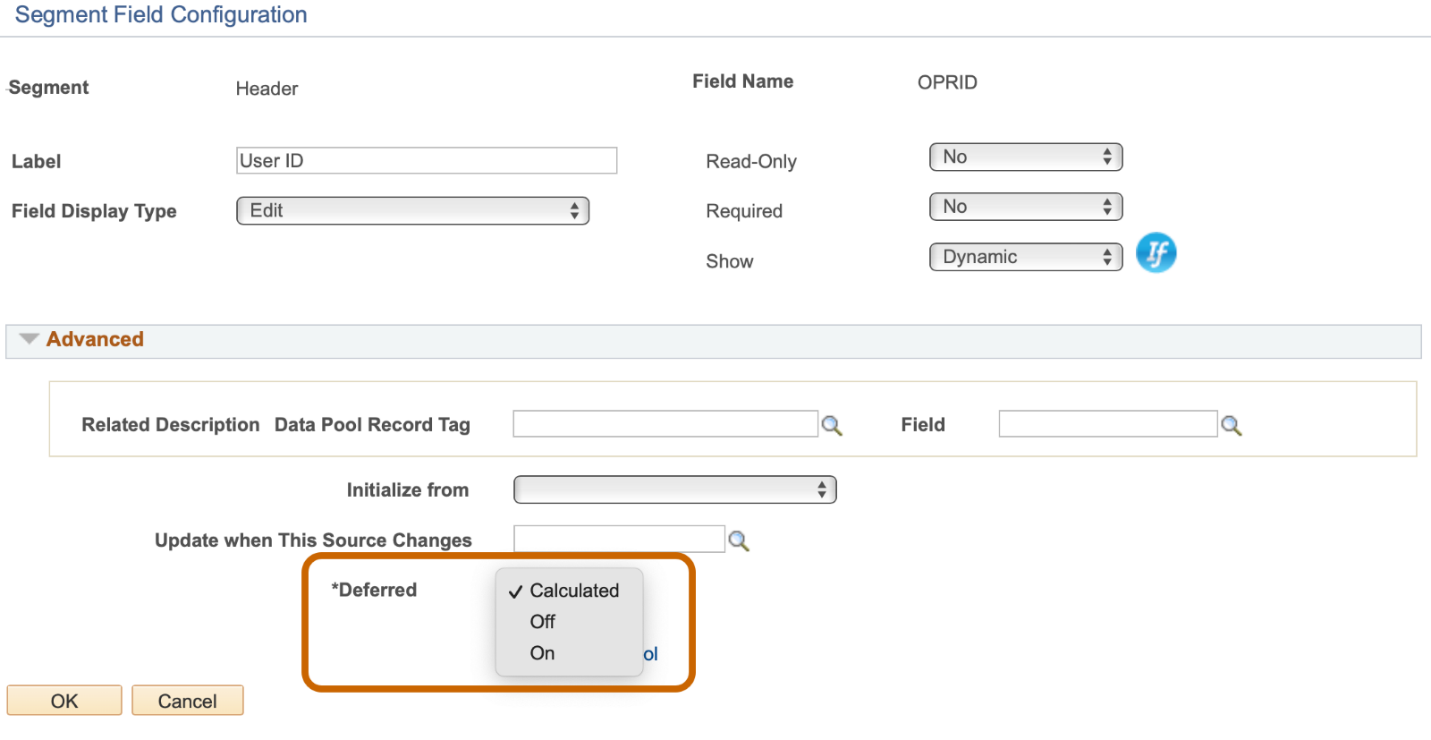
A form builder can override this calculated behavior by manually setting deferred mode to On or Off. Deferred mode can be managed on individual fields in the segment configuration modal window. Alternatively to see all deferred mode settings at once, you can use the Deferred Mode page. Both will be covered in this document.
Deferred Mode Example
For example, let’s say your form has a date field and has no dependencies, but you want it to always reformat to “04/01/2022” after a user enters “4/1/22” and leaves the field. This reformatting requires a trip to the server, but not other logic processing is necessary. A form builder would set Deferred to “Off” on that field so that end-users benefit from seeing the formatting change happen right after leaving the field instead of putting it off until another action triggers a trip to the server. This matches the behavior of a deferred date field on a standard PeopleSoft page.
On a standard PeopleSoft page, a developer would have to use App Designer to mark a field as deferred or not deferred. GT eForms calculates whether the field should be deferred and allows form builders to override the calculated behavior using configuration instead of App Designer.
Deferred Mode Page
We envision Deferred Mode to be a powerful feature that a form builder can use to meticulously craft the end-user flow of filling out an eForm. We knew it would be tedious to drill into Field Details for each field, so we created a new setup table that lists all the fields on a form and allows users to quickly make changes to each field’s Deferred Mode as needed.
To access the Deferred Mode page, navigate to it from the General tab in Form Setup or the following menu navigation:
Navigation: Manager GT eForms 3.X > Form Setup > General Tab
The “List of Deferred Mode Fields” link will appear in the Helium section on the General tab when the “Use Helium Performance” field is checked. Clicking this link will open the Deferred Mode page in a new window.
![A screenshot of the Helium box with the form build option]
Navigation: Manager GT eForms 3.X > GT Functional Setup > eForm Parts Gallery > Deferred Mode
Deferred Mode Search Page
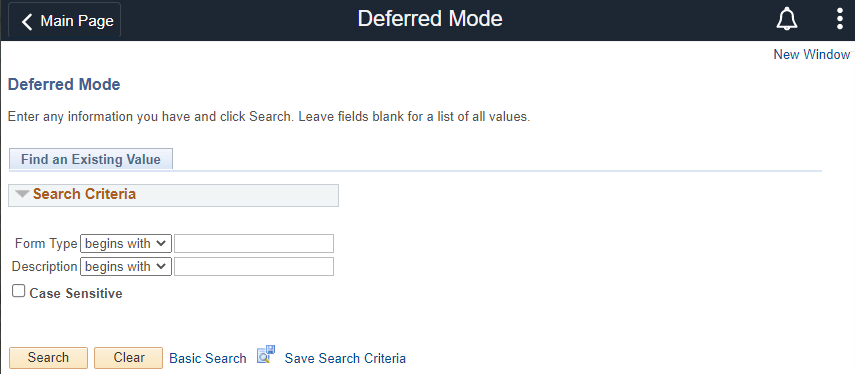
Search will return all form types that exist in the environment. This tool should only be used on forms with the “Use Helium Performance” button checked on the General tab in Form Setup.
Deferred Mode Page
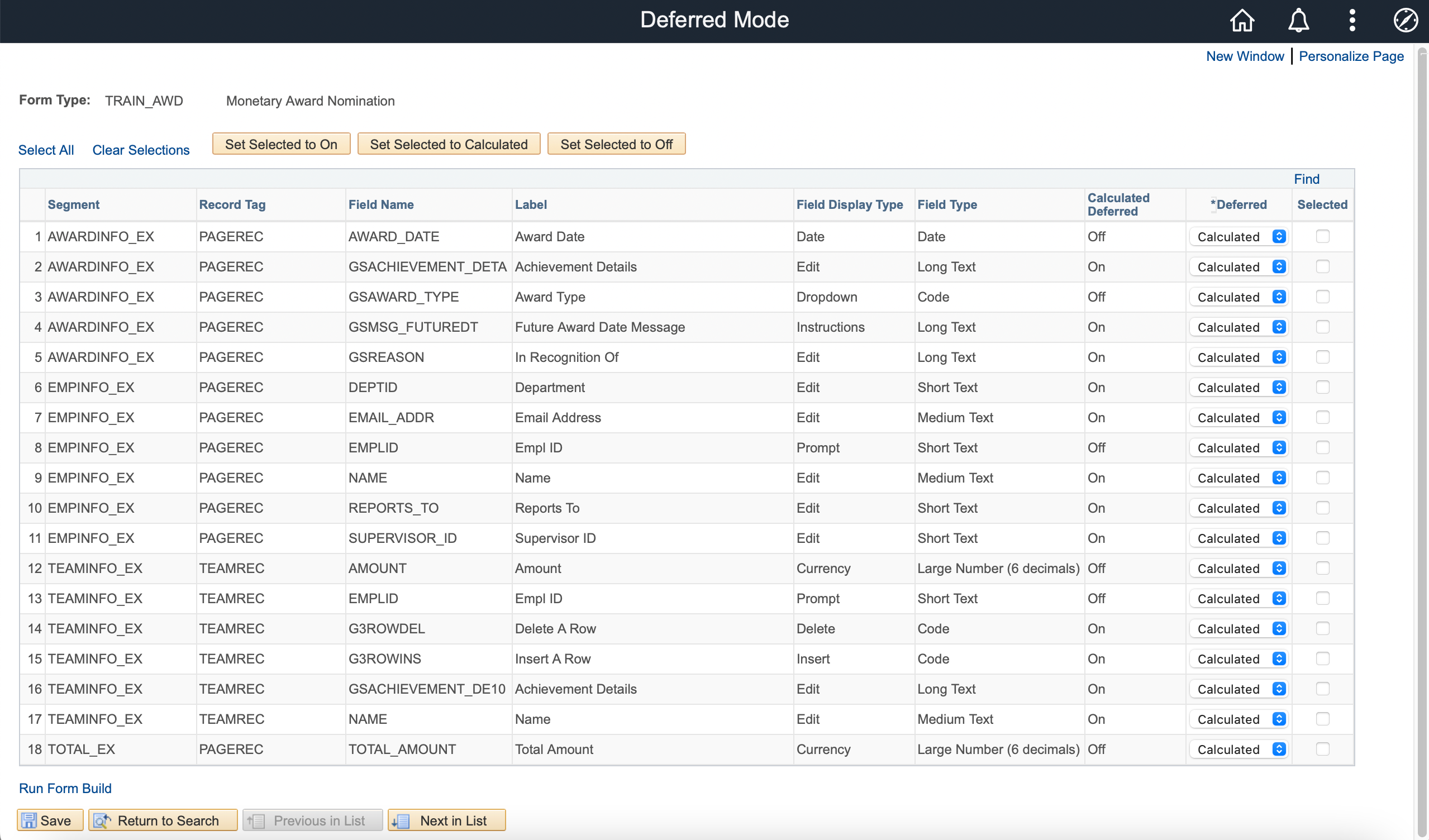
| FIELD | FUNCTIONALITY |
|---|---|
| Form Type | Form Type selected from Search |
| Select All | Checks all boxes in Selected field |
| Clear Selections | Unchecks all boxes in the Selected field |
| Set Selected to On (Button) | Sets the *Deferred field to “On” for all rows with the Selected field checked |
| Set Selected to Calculated (Button) | Sets the *Deferred field to “Calculated” for all rows with the Selected field checked |
| Set Selected to Off (Button) | Sets the *Deferred field to “Off” for all rows with the Selected field checked |
| Segment | Segment name. Fields in all configuration segments will appear in the grid. |
| Record Tag | Segment Record Tag from segment configuration |
| Field Name | Field Name from segment configuration |
| Label | Field Label from segment configuration (../../../../static/img/doc/7f5d59915fa99987d39047ede5f8e5a5.png) |
| Field Display Type | Display Type from segment configuration |
| Field Type | Field Data Type from segment configuration |
| Calculated Deferred | GT Framework calculated deferred mode. Fields with dependencies will calculate as Off. Fields without dependencies will calculate as On. |
| *Deferred | There are 3 options: Calculated (default value) - The framework will determine if deferred mode should be On/Off based on field dependencies. Off – Forces a field to trigger logic processing. One reason to do this is to force a trip to the server on date or phone number fields to process field reformatting. On – Forces a field to be deferred even if field dependencies exist. The dependencies will get resolved for deferred fields the next time a trip to the server is triggered. |
| Selected | Check this box if you want to use the following: Clear Selections (Link) Set Selected to On (Button) Set Selected to Calculated (Button) Set Selected to Off (Button) |
| Run Form Build | Click the link to open the Form Type Build in a new modal window. If any changes are made to this page, you should run a Form Build to update the form Dependency Network. Refer to Form Type Build document for additional information. |
Segment Field Configuration Page
Navigation: Manager GT eForms 3.X > Form Setup
The Deferred Mode for an individual field can also be set on the Segment Field Configuration page. A form builder can manually override the calculated deferred behavior by setting Deferred to “On” or “Off.”