Roster Type Table
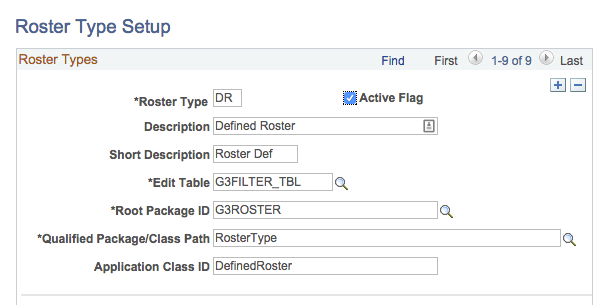
Roster Types that are set to active on this page will be available in the Roster drop-down list on the Routings tab of the Form Type Table. There are 7 delivered roster types as of GT eForms 3.75. Each roster type should return an OPRID or an array of OPRIDs.
Navigation: Main Menu > Manage GT eForms 3.x > GT Functional Setup > eForm Parts Gallery > Roster Type Table
| Roster Type Setup |
|---|
 |
| Field | Value/Use |
|---|
| 1 |  (Add and Remove buttons) (Add and Remove buttons) | The plus button will add a new entry. The minus button will remove the entry. |
| 2 | Roster Type | Two letter unique identifier |
| 3 | Active Flag | Active when checked |
| 4 | Description | Description for this roster type |
| 5 | Short Description | Short description |
| 6 | Edit Table | Select the table used to define values for roster type |
| 7 | Root Package ID | Select the package ID |
| 8 | Qualified Package/Class Path | Enter path |
| 9 | Application Class ID | Enter class ID |
Roster Groups
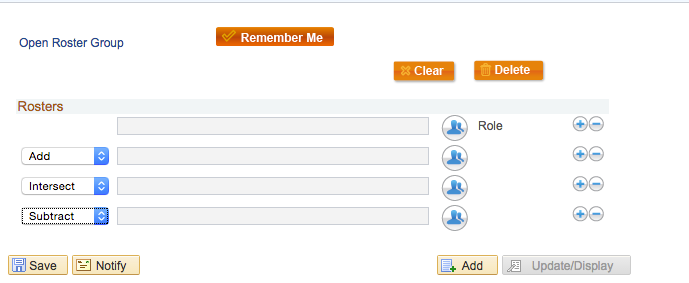
The Roster Groups created on this page can be found by selecting Roster Group for the Roster Type in the Roster Lookup.
Navigation: Main Menu > Manage GT eForms 3.x > Form Setup > Form Type Table > Routings tab > Roster Lookup icon
Alt Navigation: Main Menu > Manage GT eForms 3.x > GT Functional Setup > eForm Parts Gallery > Roster Groups
Roster Groups Main Setup
| Define Roster Groups |
|---|
 |
| Field | Value/Use |
|---|
| 1 | Open Roster Group | Link to select an existing roster group. Allows users to make edits or a copy of group |
| 2 | Remember Me | Define the name that should be used when saving this group.
Note: this must be a unique name or an error will appear. |
| 3 | Clear | Clears the data on the page |
| 4 | Delete | Deletes the roster group from the database |
| 5 |  (Roster Lookup) (Roster Lookup) | Opens the Roster Lookup page. See details below. |
| 6 | 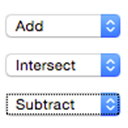 | Select and operator to define the relationship amongst roster lines.
'Add' will add the user list to the list of users above.
'Intersect' will only include only the users contained on both lists.
'Subtract' will remove the users in a given list from the list above. |
Roster Lookup
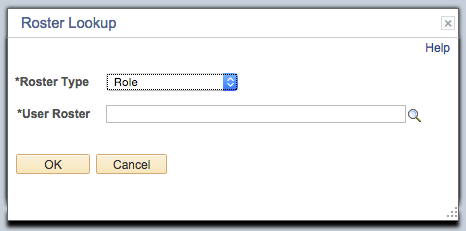
Use the roster lookup to build pieces of the roster group. Select roster type and user roster in the window below
| Define Roster Groups - Roster Lookup |
|---|
 . . |
| Field | Value/Use |
|---|
| 1 | Roster Type | List of active roster types from the Roster Type Table |
| 2 | User Roster | Select the User Roster |
Roster Types:
| Roster Type | User Roster Lookup |
|---|
| Defined Roster | PeopleCode Defined Rosters and others created on the Defined Roster page |
| Query | PS Queries configured as Public Process queries |
| Role | PeopleSoft roles |
| Roster Group | Roster Groups that were previously saved on the Roster Groups Page or Form Setup. |
| SQL Object | SQL Objects |
| SmartSource | Smartsources, including fields, data pool, logic stacks and PeopleCode smartsources |
| User | User IDs (aka OPRIDs from the PSOPRDEFN table) |
Defined Rosters
Most Rosters can be set up in Form Configuration via the Form Configuration link. However, there is an option to add complex filters that pass in binds from the form (or system) to help limit the list of users in the roster for that specific form or step. This page is used to configure Rosters that require binds or complex PeopleCode logic. As you setup Defined Rosters, it can be helpful to keep in mind the end result of any Defined Roster must always be a set/array of OPRID values.
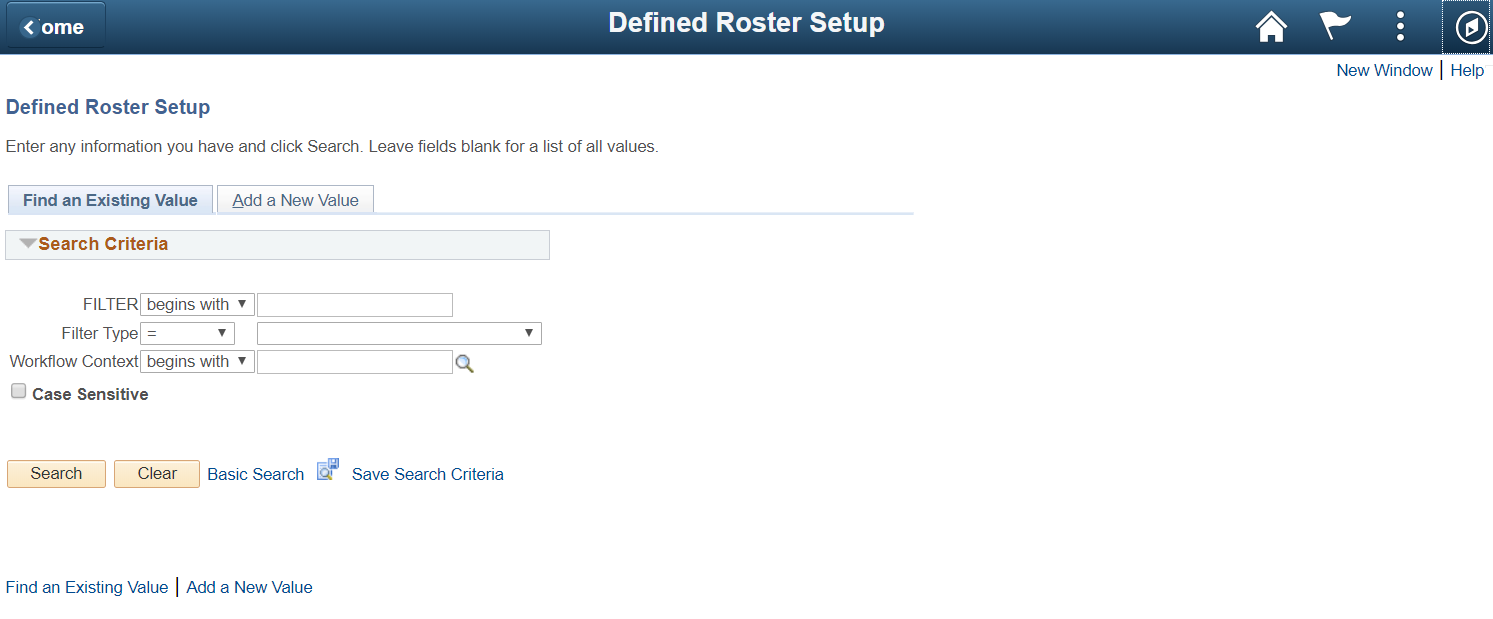 Navigation: Main Menu > Manage GT eForms 3.x > GT Functional Setup > eForms Parts Gallery > Defined Roster Setup
Defined Roster Search
Advanced Search
The search defaults to Advanced Search. To change to basic search, click Basic Search
| Field | Value/Use |
|---|
| 1 | Filter | Name for this filter. When creating a new filter use a name that easily distinguishes what is the purpose of the filter. |
| 2 | Filter Type | Select from PeopleCode, Query, or SQL object. |
| 3 | Workflow Context | Select the workflow context for this filter from the list of developed contexts |
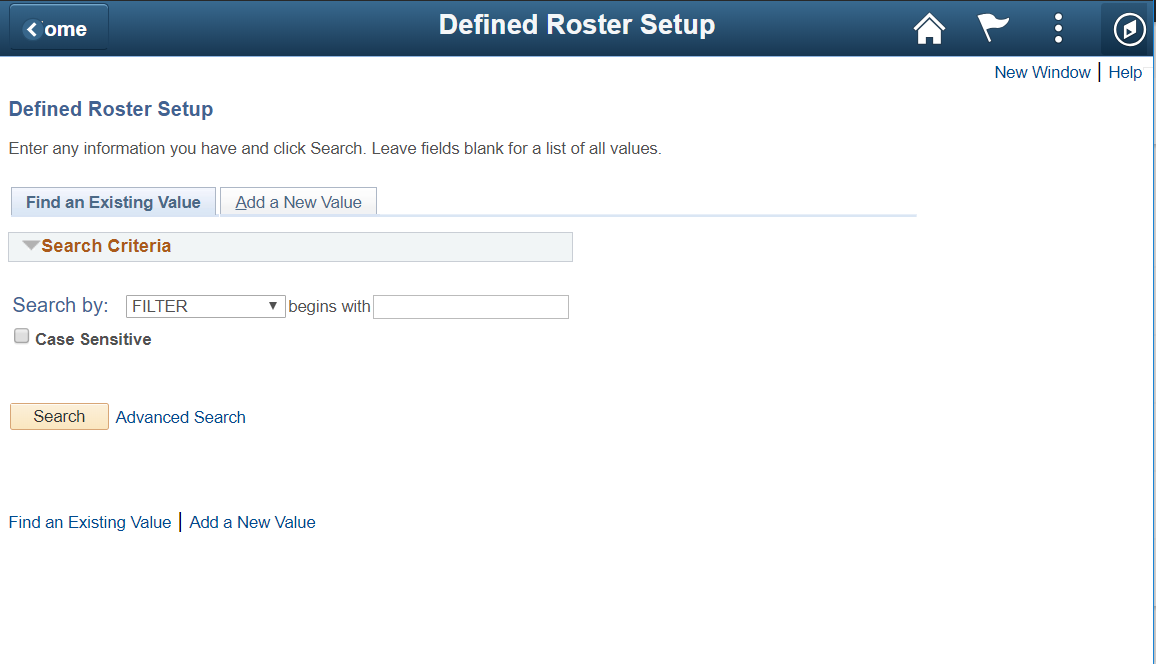
Basic Search
| Basic Search using one of the below fields. To change to the advanced search, click Advanced Search. |
|---|
 |
| Field | Value/Use |
|---|
| 1 | Search by | Select from Filter, Filter Type, or Workflow Context. See the above Advanced Search section for details on each of these fields. |
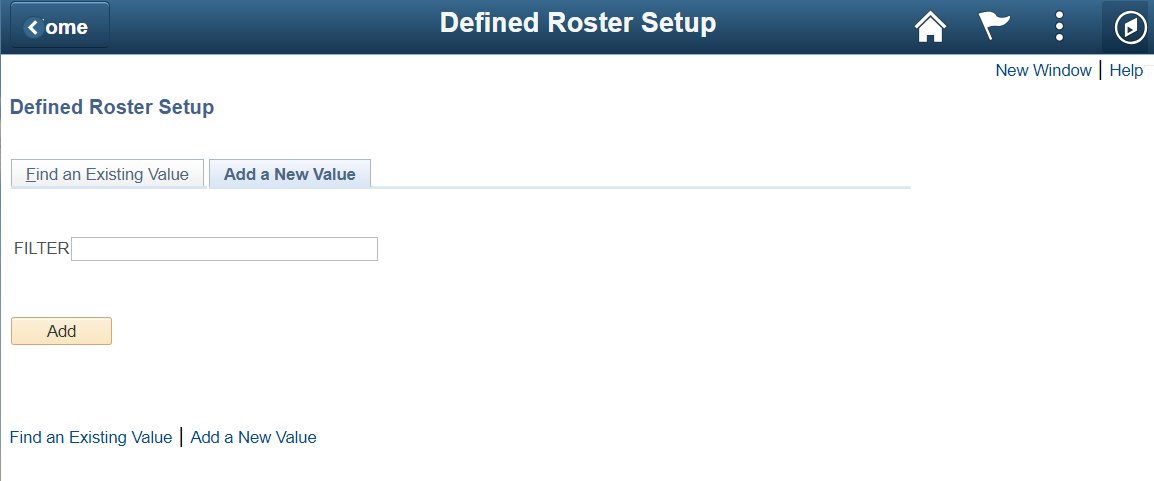
Add a New Value
| Add a new value to create a new defined roster |
|---|
 |
| Field | Value/Use |
|---|
| 1 | Filter | Name for this filter. When creating a new filter use a name that easily distinguishes what is the purpose of the filter. |
PeopleCode Defined Rosters
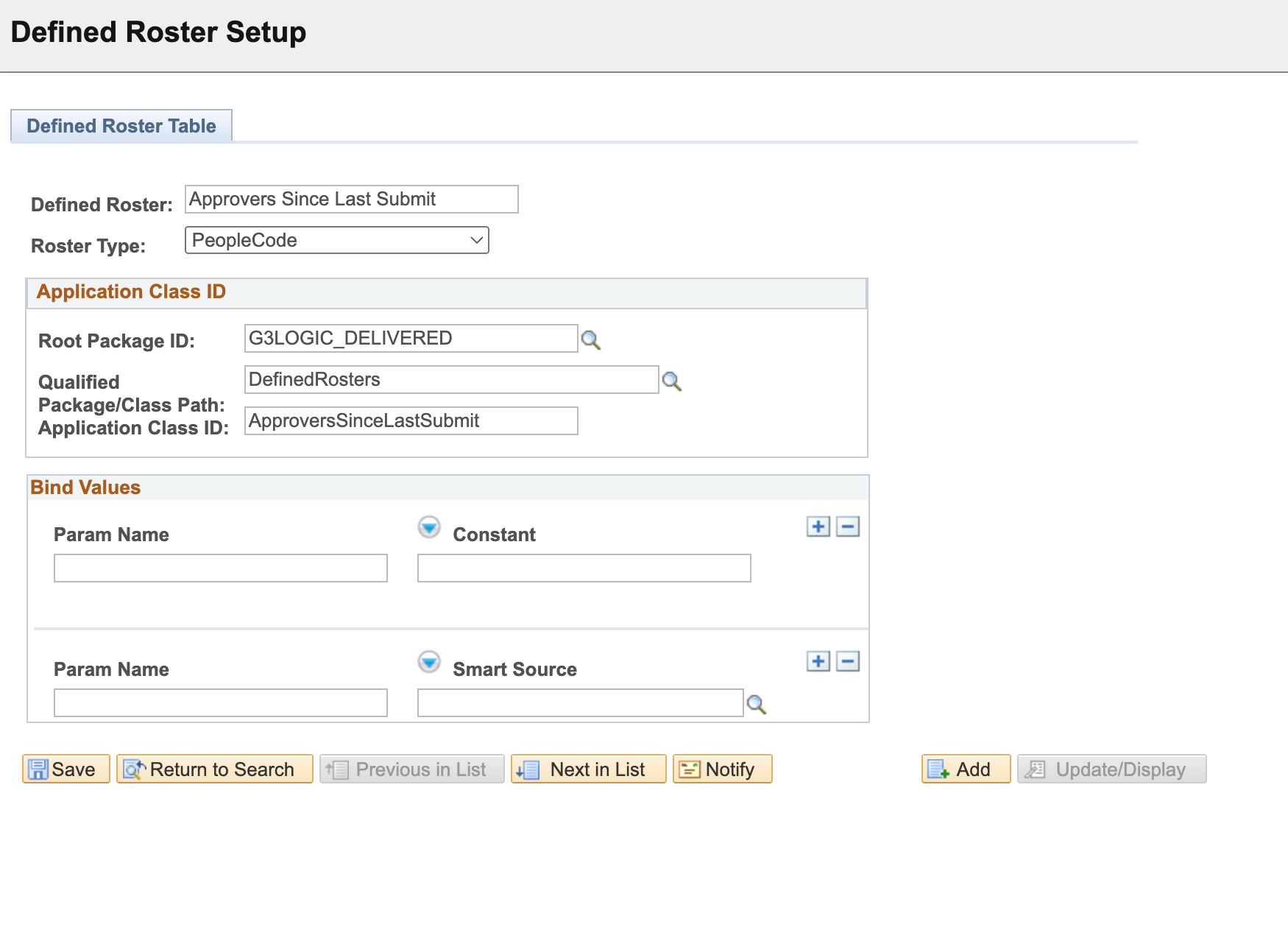
PeopleCode Defined Rosters allow you to create a roster by running custom PeopleCode. This option is useful for meeting complex business requirements, as custom PeopleCode can be written to identify the correct roster participants. The application class containing this logic must be structured in a specific way, as outlined in the PeopleCode Defined Roster section of our Development API documentation. When a PeopleCode Defined Roster is executed, the return value must always be an array of OPRID values representing the roster participants.
| Defined Rosters - PeopleCode |
|---|
 |
| Field | Value/Use |
|---|
| 1 | Defined Roster | The description should be easy for the functional user to identify |
| 2 | Roster Type | PeopleCode |
| 3 | Root Package ID | Select the Root Package ID |
| 4 | Qualified Package/Class Path | Select the Path |
| 5 | Application Class ID | Enter the Class ID |
| 6 | Bind Values – Param Name | Parameters for the workflow filter can be further defined by a bind variable that can be a predefined snippet or defined here. |
| 7 | Bind Values – Constant/SmartSource | Defaults to Constant. For a SmartSource, click the Constant button once to define the parameter as a SmartSource. |
| 8 | Bind Values – Constant Value/Param Value | Enter a constant or use the lookup to select a SmartSource for the given parameter |
| 9 | Add a Row | Adds a row to add an additional bind value |
| 10 | Delete a Row | Deletes a row to remove a bind value |
Query Defined Rosters
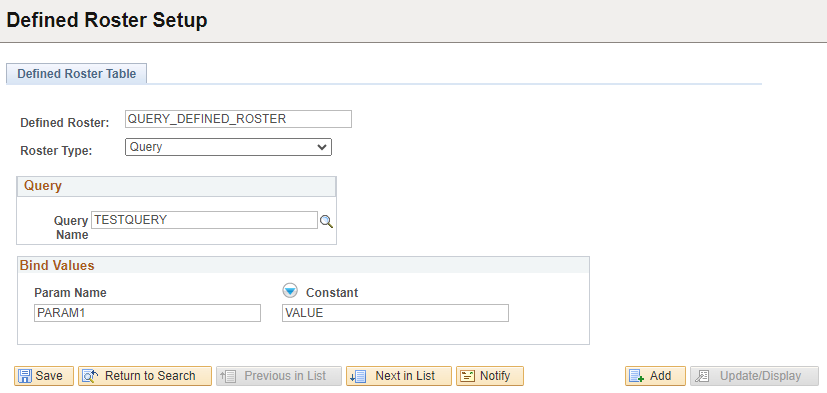
Query Defined Rosters allow you to create a roster that runs a PS Query to identify the roster participants. All Queries intended for use as a Defined Roster MUST be created with OPRID as the first column of returned data. When run, the values returned in this column will become the roster's participants.
| Defined Rosters – Query |
|---|
 |
| Field | Value/Use |
|---|
| 1 | Defined Roster | The description should be easy for the functional user to identify |
| 2 | Roster Type | Query |
| 3 | Query Name | Select the query name |
| 4 | Bind Values – Param Name | Defaults based upon the prompts defined in the query. |
| 5 | Bind Values – Constant/SmartSource | Defaults to Constant. For a SmartSource, click the Constant button once to define the parameter as a SmartSource. |
| 6 | Bind Values – Constant Value/Param Value | Enter a constant or use the lookup to select a SmartSource for the given parameter |
SQL Object Defined Rosters
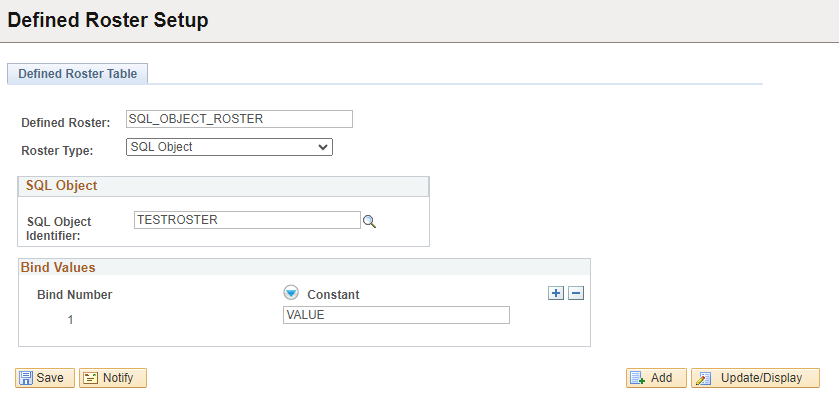
SQL Object Defined Rosters allow you to create a roster that executes a SQL statement stored in a SQL Object to identify the roster participants. All SQL Objects intended for use as a Defined Roster MUST be created to return OPRID as the first column of returned values. When executed, the values returned by the SQL in this column will become the roster's participants.
| Defined Rosters – SQL Object |
|---|
 |
| Field | Value/Use |
|---|
| 1 | Defined Roster | The description should be easy for the functional user to identify |
| 2 | Roster Type | SQL Object |
| 3 | SQL Object Identifier | Select the SQL Object Identifier |
| 4 | Binds Values – Bind Number | Auto-numbers based on the number of rows on the page |
| 5 | Bind Values – Constant/SmartSource | Defaults to Constant. For a SmartSource, click the Constant button once to define the parameter as a SmartSource. |
| 6 | Bind Values – Constant Value/Param Value | Enter a constant or use the lookup to select a SmartSource for the given parameter |
| 7 | Add a Row | Adds a row to add an additional bind value |
| 8 | Delete a Row | Deletes a row to remove a bind value |