Email Templates
Email Templates provides an easy-to-use template for creating email notifications that support the workflow process. It allows a functional user to create and edit email notifications as per their business requirements.
Navigation: Manage GT eForms 3.x > GT Functional Setup > eForm Parts Gallery > Email Templates
Search
You may search for existing Email Templates or add new ones.
Find an Existing Value
Use the search to find existing Email Templates.
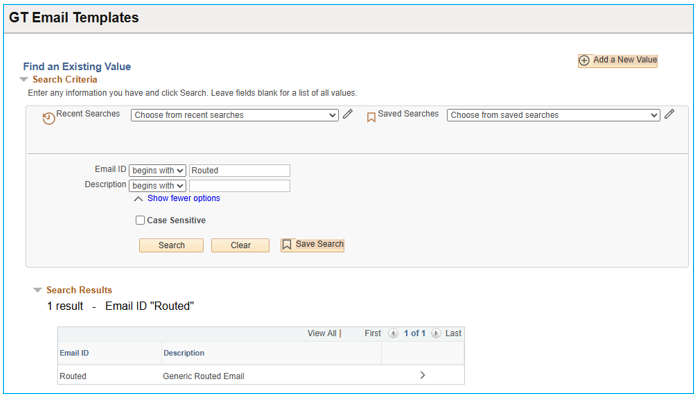
| PAGE OBJECT | FUNCTIONALITY |
|---|---|
| Email ID | Optional – enter full or partial Email ID |
| Description | Optional – enter full or partial email description |
| Recent Searches | Choose the dropdown arrow to select a recent search. Click the pencil icon to 'Manage Recent Searches'. You can delete individual searches by clicking the 'X' on the row, or you can delete all recent searches by clicking the 'Delete All' link. Click the 'Save' button to save your changes or the 'Cancel' button to return to the search page without saving changes. |
| Saved Searches | Choose the dropdown arrow to select a saved search. Click the pencil icon to 'Manage Saved Searches'. You can display the saved searches in a different order by selecting the 'Display By' dropdown. The options are 'Newest on top', 'Alphabetical', or 'Oldest on top'. Click the 'Rename' link to rename the saved search. You can delete individual searches by clicking the 'X' on the row. You can delete all saved searches by clicking the 'Delete All' link. Click the 'Save' button to save your changes or the 'Cancel' button to return to the search page without saving changes. |
| Save Search (button) | Once you enter text into a search field and click the 'Search' button, the 'Save Search' button will appear. Click the 'Save Search' button and enter a 'Name' for the search. Click the 'Save' button to save your changes or the 'Cancel' button to return to the search page without saving changes. |
| Show more options / Show fewer options (link) | The search will default to 'begins with', but the operator can be changed. Click the 'Show fewer options' link to search using 'begins with' on a single field. |
| Case Sensititve | The Case Sensitive checkbox allows you the option to make the search case-sensitive. |
| Search (button) | Click the 'Search' button to search for existing math smart sources |
| Clear (button) | Click the 'Clear' button to remove the text in the 'Unique Smart Source' field |
| Add a New Value (button) | Click to add a new Email Templates |
Search Results
The search results display all Email Templates that match your selected search criteria. If the search fields are left blank, all Email Templates will be displayed. Click anywhere in the row of the smartsource you want to open. The results table includes the following columns:
Unique Smart Source ID
Smart Source Name
Segment Type
Grid Option
Click any column heading to sort the results in ascending or descending order.
Add a New Value
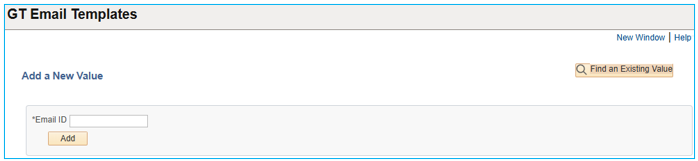
Click on the 'Add a New Value' button to create a new Email Template. Enter a unique name for the Email ID and click the 'Add' button.
| PAGE OBJECT | FUNCTIONALITY |
|---|---|
| Email ID | Enter a unique name. Once saved, this unique ID cannot be changed. |
| Add (button) | Click button to add the new Email Template |
| Find an Existing Value (button) | Click button to search for an existing Email Template |
Email Template
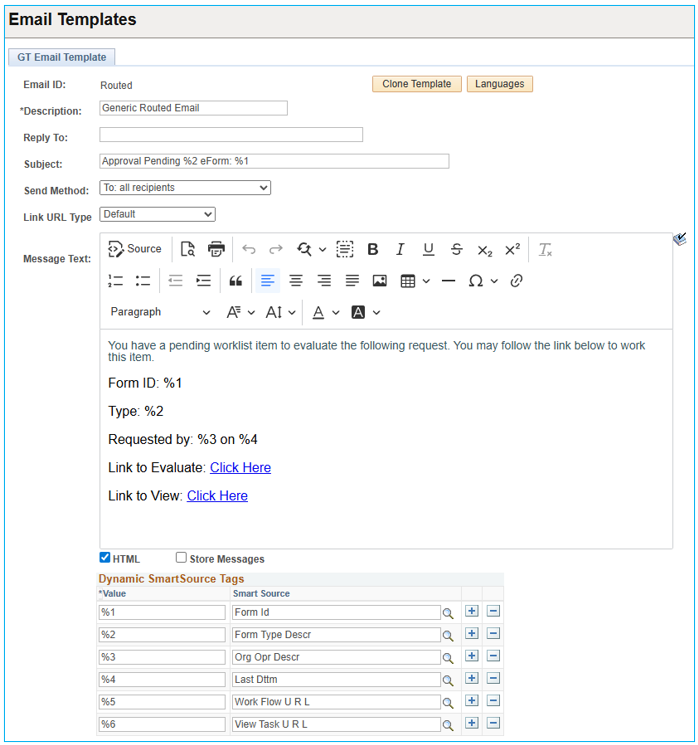
| PAGE OBJECT | FUNCTIONALITY |
|---|---|
| Email Id | Read-only name of the template entered when the template was created. |
| Clone Template | When clicked, a pop-up window opens to create a cloned email template. If changes have been made to the existing email template, The following message will appear: "Changes need to be saved prior to duplicating. Do you want to save now?" Click Yes to save the changes and create a new email template. Click No to return to the existing email template. |
| Duplicate Template (pop up) | To create a new email template, a Duplicate Template pop up box will appear. Enter the new Email ID in the Save Cloned Template As Name field. Check Open Cloned Template in New Window to open the cloned template in a new window. Click OK to create the new email template. Click Cancel to return to the existing email template. |
| Languages (button) | When clicked, opens multi-language window to enter template translation. Please refer to the Language Translation Support for more information. |
| Description | Enter a description for the new template. |
| Reply To | Indicate the address you want to be used as the sender address. Any replies will be sent to this address. Note: A Reply To value on an email template takes priority over the Default Reply To Email value on the Form Installation Table. If there is no Reply To value on the email template and no Default Reply To Email on the Form Installation Table, the email will appear to be sent from the environment’s default email. |
| Subject | This will be the subject line on the email notification. When using a bind variable, the variable must be formatted using “%N” with N = the variable's number. The variable must be defined in the variable section below. |
| Send Method | Choose from one of the options: BCC: all recipients = The system will send a single email and any email recipients will receive the email with “Undisclosed Recipients” in the BCC line as a way to hide the list of recipients. To: All Recipients = The system will send a single email and any email recipients will appear in the "To" line. Recipients will see other recipients on the email. Unique email per recipient = The system will send a separate email for each recipient. Allows for customized subject and body text for each email recipient. Recipients will not see other recipients' information. This option requires technical assistance. |
| Link URL Type | Dropdown shows “Default” and any URL Overrides that were technically setup in the Email URL Override Table. If email should be sent with standard URL links that point to the default Peoplesoft portal (which typically requires the user to login upon redirect), then select “Default”. If the email should be sent with different URL parameters defined to point to a separate portal, select the desired value in the dropdown appears based on the URL parameters defined on the Email URL Override table. |
| Message Text | This will be the body of the email notification. When using a bind variable, the variable must be formatted using “%N” with N = the variable's number. The variable must be defined in the variable section below. The rich text editor box can also be used to format the Message Text. |
| Spell Check Message Text (icon) | Click the icon to spellcheck the Message Text |
| HTML (checkbox) | If this field is checked, then the system will read HTML tags and render the format based on HTML. If the field is not checked, it will send plain text. This field will default to checked. |
| Store Messages (checkbox) | When checked, this email is stored for the user in the on-boarding dashboard message center. |
| Dynamic SmartSource Tags – Value | Here, you can create variables for use in the email subject or message text. To create a new one, insert a row and define the variable by choosing a number. |
| Dynamic SmartSource Tags – SmartSource | These are the bind variables available for use in the email template. If a variable that is needed is not defined, a technical resource can define it through code. |
Important considerations for using placeholders (SmartSource Tags) in email templates
When an email template contains both of the following, issues can potentially occur.
- Placeholders — referred to in the Email Template menu as 'Dynamic SmartSource Tags' (e.g.
%20) - URL-encoded content (such as a link to another website)
The issue affects the URL-encoded content by altering it unintentionally. The following is an explanation of what causes this and how to avoid it.
When you create an email template, you can set up special placeholders (called Dynamic SmartSource Tags) that will be automatically replaced with certain values when the email is sent. For example, you might define a variable like %20 to represent a person's name, so it can be inserted into the email wherever you want.
The problem happens when you add links to your email, like a "mailto" link, which includes special characters that are encoded in a way computers can read. For example, a space is encoded as %20, and an "@" symbol is encoded as %40. These special characters are part of the link itself.
If your email template has a variable named %20, and there's a space in one of your links that’s already encoded as %20, the system might accidentally replace that encoded %20 with whatever value you've assigned to the %20 variable. This breaks the link by replacing what's supposed to be a space with something else.
Why it happens:
This issue occurs because the system doesn't know that %20 in a link is different from the variable %20. Both are seen as the same thing, and so the system replaces the %20 in your link with the wrong value, which messes up the link.
This is not an issue with the GT eForms framework, but a natural consequence of the way computers format characters to send them over the internet. If you're interested in learning more about URL Encoding, you can read about it on w3schools.com.
How to fix it:
The best way to handle this issue is to use different names for your variables that don’t conflict with the special characters used in URLs. For example, instead of using %20 for a variable, you could choose a different number that doesn't match any of the URL-encoded characters used in links contained in the email template.
By doing this, you can make sure your email template will only replace the variables where you intend, and it won't accidentally change parts of your links that need to stay the same.