Math Smart Sources
Math Smart Sources allow you to create a mathematical expression using one or more fields from a form. These expressions can be used in many places, including populating fields on your form, driving visual if logic, and populating fields in email templates. Below are some common examples of the types of logic that can be achieved using Math Smart Sources:
- You have a column or grid segment date field on your form, and you want to add or subtract a number of days.
- You have two column or grid segment dates on your form, and you want to subtract one date from the other to calculate the number of days between the dates.
- You have a number column or grid segment field on your form, and you want to add, subtract, multiply, or divide that value by another number field on your form or by a constant value.
- You have a grid segment, and you want to create a smart source to aggregate values within a column. You can sum, average, max, min, or count the column values.
Navigation: Manage GT eForms 3.x > GT Functional Setup > eForm Parts Gallery > Custom Parts > Math Smart Sources
Search
You may search for existing Math Smart Sources or add new ones.
Find an Existing Value
Use the search to find an existing Math Smart Source.
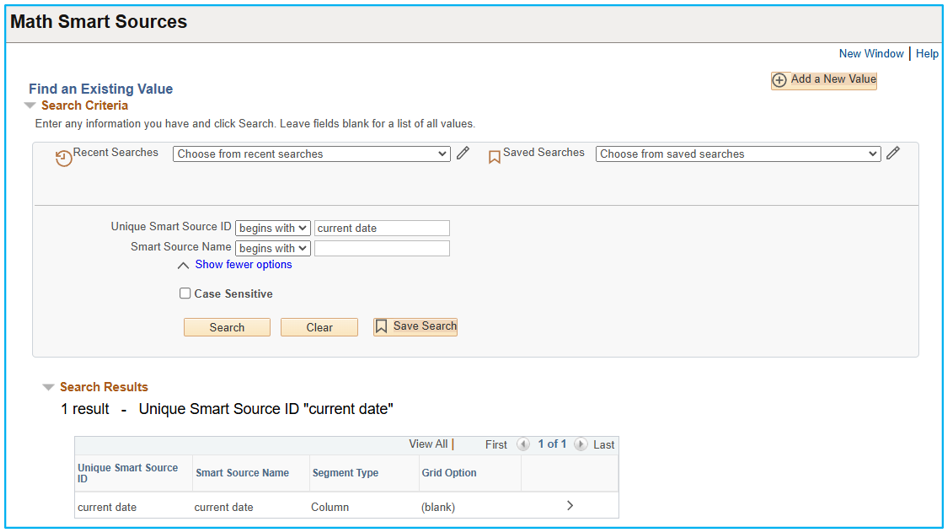
| FIELD | VALUE |
|---|---|
| Unique Smart Source ID | Optional – enter full or partial ID of desired Math Smart Source to view/edit |
| Smart Source Name | Optional – enter full or partial Smart Source Name to view/edit |
| Recent Searches | Choose the dropdown arrow to select a recent search. Click the pencil icon to 'Manage Recent Searches'. You can delete individual searches by clicking the 'X' on the row, or you can delete all recent searches by clicking the 'Delete All' link. Click the 'Save' button to save your changes or the 'Cancel' button to return to the search page without saving changes. |
| Saved Searches | Choose the dropdown arrow to select a saved search. Click the pencil icon to 'Manage Saved Searches'. You can display the saved searches in a different order by selecting the 'Display By' dropdown. The options are 'Newest on top', 'Alphabetical', or 'Oldest on top'. Click the 'Rename' link to rename the saved search. You can delete individual searches by clicking the 'X' on the row. You can delete all saved searches by clicking the 'Delete All' link. Click the 'Save' button to save your changes or the 'Cancel' button to return to the search page without saving changes. |
| Save Search (button) | Once you enter text into a search field and click the 'Search' button, the 'Save Search' button will appear. Click the 'Save Search' button and enter a 'Name' for the search. Click the 'Save' button to save your changes or the 'Cancel' button to return to the search page without saving changes. |
| Show more options / Show fewer options (link) | The search will default to 'begins with', but the operator can be changed. Click the 'Show fewer options' link to search using 'begins with' on a single field. |
| Search (button) | Click the 'Search' button to search for existing math smart sources |
| Clear (button) | Click the 'Clear' button to remove the text in the 'Unique Smart Source' field |
| Add a New Value (button) | Click to add a new Math Smart Source |
Search Results
The search results display all Math Smart Sources that match your selected search criteria. If the search fields are left blank, all the Math Smart Sources will be displayed. Click anywhere in the row of the smart source you want to open. The results table includes the following columns:
Unique Smart Source ID
Smart Source Name
Segment Type
Grid Option
Click any column heading to sort the results in ascending or descending order.
Add a New Value
Click on the 'Add a New Value' button to create a new Math Smart Source. Enter a unique name for the smart souce and click the 'Add' button.
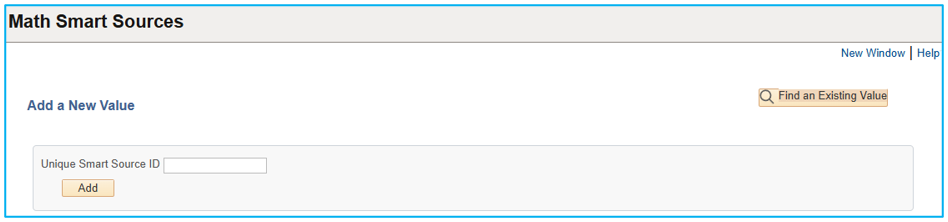
| FIELD | VALUE |
|---|---|
| Unique Smart Source ID | Enter a unique name using alphanumeric characters. The name can contain spaces, hyphens (-), question marks (?), exclamation points (!), and underscores (_). Once saved, this unique ID cannot be changed. |
| Add (button) | Click button to add the new Math Smart Source after adding a Unique Smart Source ID name |
| Find an Existing Value (button) | Click button to search for an existing Math Smart Source |
Math Smart Sources
The Math Smart Sources page is used to define the math you want to use to create the smart sources. It also provides a way to visualize the math calculations.
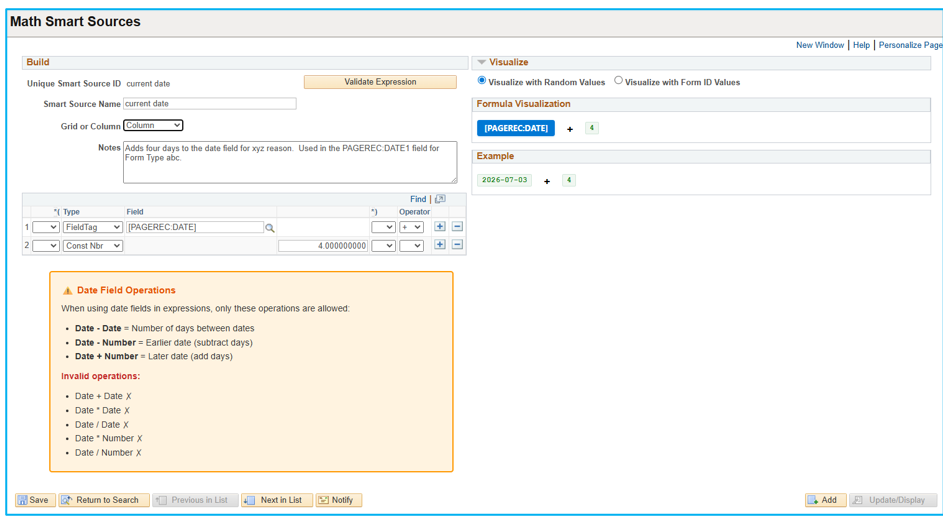
Build:Column
Build a math smart source using fields from column segments.
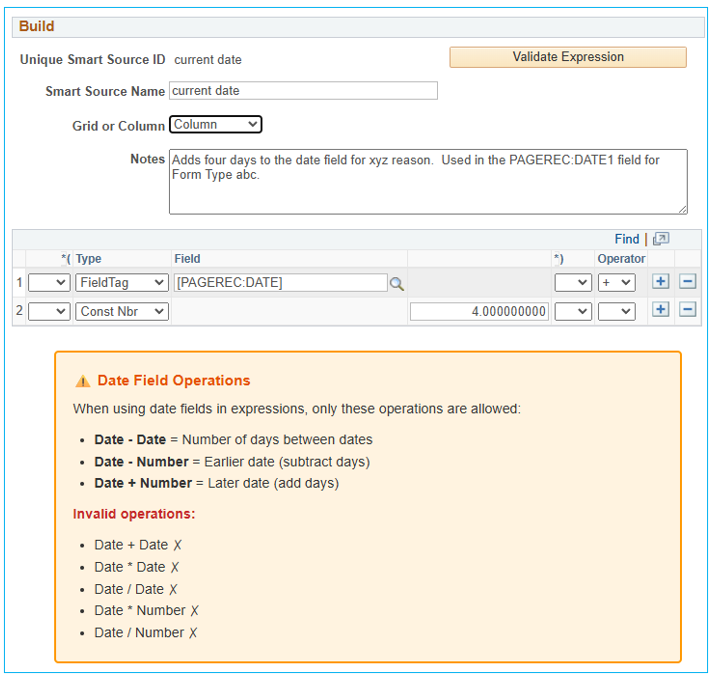
| FIELD | VALUE |
|---|---|
| Unique Smart Source ID | Displays the ID value selected in the search or the newly added value |
| Smart Source Name | Displays the name of the existing Math Smart Sources |
| Grid or Column | Choose column to build a Math Smart Source using fields from a column segment |
| Notes | Enter notes as needed to document information about the Math Smart Source for future reference. |
| *( | Click dropdown to add one or many open parentheses. Parentheses are not required, but may be needed for more complex math. |
| Type | The type is used to select one of the following options: Const Date - Enter a constant date in the field column Const Nbr - Enter a constant number in the field column FieldTag - Choose a field from a column segment in the field column |
| Field | Enter constant or choose a field based on 'Type' selected. When the 'Type' is 'FieldTag' you can search for a field by: LifeCycle Defauting SmartSrc - Column segment fields displayed with [Record Tag:Field Name] Form Type - Form Type where the field is located Segment - Segment name where the field is located |
| *) | Click dropdown to add one or many close parentheses |
| Operator | Choose operator if needed or leave blank. Options are: Plus '+', Minus '-' , Multiply '*', or Divide '/' |
| Add a Row (button) | Adds a new row below the row where the button is clicked |
| Delete a Row (button) | Deletes the row where the button is clicked |
| Validate Expression (button) | Click the button to confirm that the configured logic produces the correct results in the 'Example' section. An error message appears if the expression is invalid and needs to be updated. |
Build:Grid
Build a math smart source using fields from grid segments.
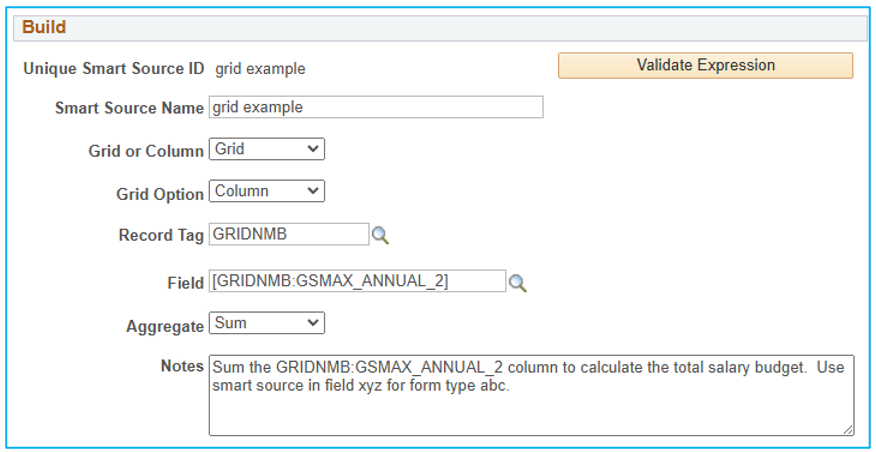
| FIELD | VALUE |
|---|---|
| Unique Smart Source ID | Displays the ID value selected in the search or the newly added value |
| Smart Source Name | Displays the name of the existing math smart sources |
| Grid or Column | Choose grid to build a math smart source using fields from a grid segment |
| Grid Option | Row - Choose this option to calculate math like the column segment, but the math will look at each row in the grid. The FieldTag Type will only show grid segment fields in the prompt. Column - Choose this option to calculate an aggregate using the values in a grid column. |
| Record Tag | Choose the record tag of the grid segment in your form. The field options will be limited to the grid fields in that segment. |
| Notes | Enter notes as needed to document information about the math smart source for future reference. |
| Field (Column Grid Option) | Choose a grid field from the prompt to aggregate |
| Aggregate (Column Grid Option) | Use the dropdown to select from the following aggregate options: Average - Averages the values in a grid column Count - Counts the number of rows in the grid Max - Displays the max value in the grid column Min - Displays the min value in the grid column Sum - Diplays the sum of all the values in the grid column |
| Validate Expression (button) | Click the button to confirm that the configured logic produces the correct results in the 'Example' section. An error message appears if the expression is invalid and needs to be updated. |
Visualize

-
Visualize with Random Values: This option will display a Formula Visualization and Example using random numbers/dates.
-
Visualize with Form ID Values: This option will display a Form ID prompt field where you can enter a Form ID or search for a valid Form ID. Click on the prompt to search for forms by Form ID, Form Type, Form Status, Original Operator, Original Date, Last Operator, or Last Date. Click the 'Lookup' button after you enter search criteria to view the 'Search Results'. Click the 'Clear' button to remove any search criteria. Click 'Cancel' button to close the Look Up Form ID' search box.
Formula Visualization
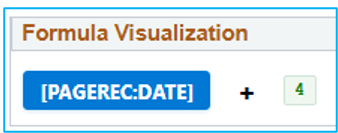
Displays the parentheses, fields, constants, and operators in the formula.
Example
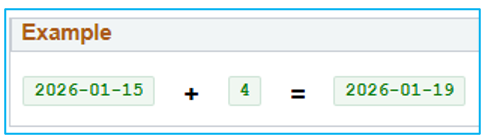 Displays the formula with either random values or actual values from the Form ID in the Visualize section when you select 'Visualize with Form ID Values'. If you click on 'Validate Expression' button in the 'Build' section, the formula will be calculated and show the result.
Configuration Tips
Formulas must use actual fields that exist on the form. The fields can be shown or hidden. If you need to use a framework-delivered smart source such as 'Current Date', you must first add it as a field on the form.
Date fields have specific formula options:
-
You may subtract one date from another to calculate the number of days between them.
-
You may add or subtract a number of days from a date.
-
You may not perform other mathematical operations on date fields such as Date + Date, multiplication, or division.
Ensure that the 'Field Data Type' in your 'Configuration Segment' matches the format of the formula result. Here are a couple of examples.
Do not use a Math Smart Source to populate a field with a 'Field Data Type' of 'Integer' if the formula result could be negative. Integer fields do not allow negative numbers.
A Math Smart Source that is used to calculate a date plus a number of days should be used in a field with a 'Field Data Type' of 'Date'.