Format Rules
Format Rules were introduced in GT Framework version 3.76.00.
Format Rules provide a configuration-based way to impose extra restrictions on field values. Examples include:
- Limiting values to a specific number of characters.
- Restricting a value to letters and spaces (no numbers allowed)
- Requiring values to conform to a specific format (e.g. "TPS-Report 123")
Format Rules use regular expressions (regex) to define these restrictions.
Please note that Format Rules are only available in Framework Version 3.76.00 or newer
Navigation: Manage GT eForms 3.x > GT Functional Setup > eForm Parts Gallery > Format Rule
Here, you can search for an existing rule or create a new rule.
Search for a Format Rule
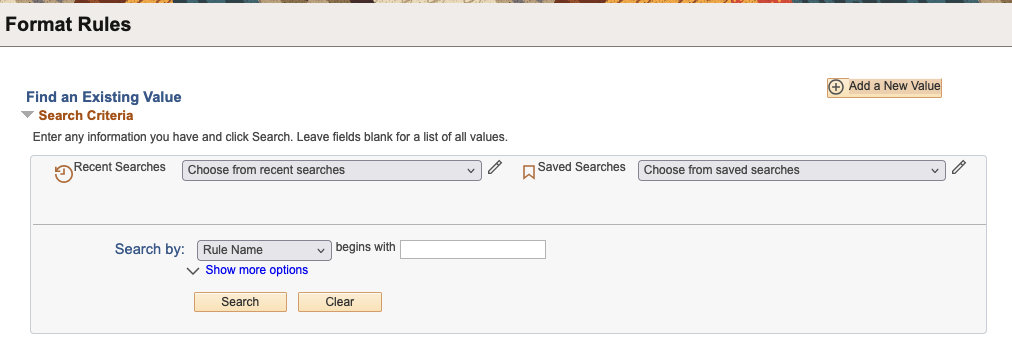
You can search for existing Format Rules by Rule Name or Regular Expression.
Change the "Search By" dropdown to the preferred value to search on. Alternatively, click "Show More Options" to see both the Rule Name and Regular Expression search fields and adjust the search operators.
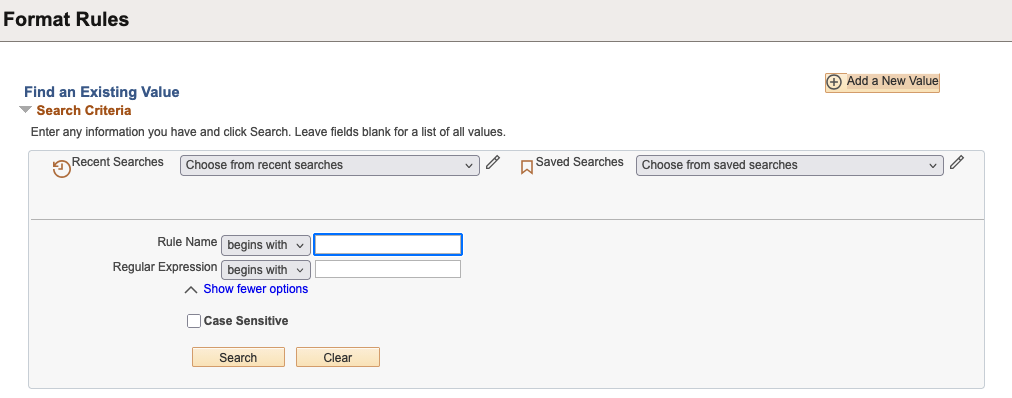
Enter the Rule Name or Regular Expression, then click "Search." If either the Regular Expression or Rule Name is left blank, the search will return all results for that field. Leaving both blank will return all Format Rules up to the max number that can be shown in search results in your environment.
Click the Format Rule that needs to be updated.
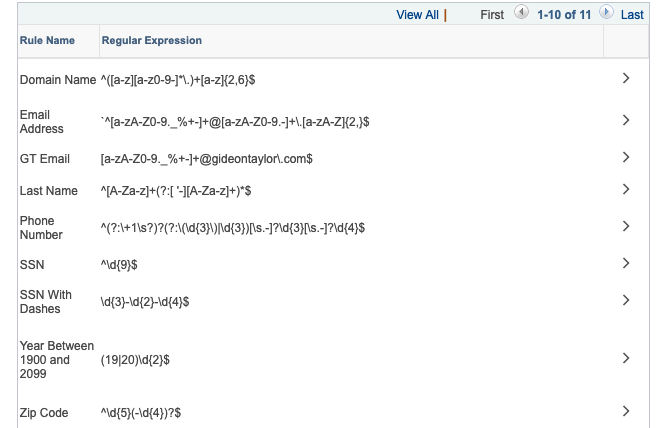
Add a New Value
Clicking "Add a New Value" on the top right of the search page will show this page:
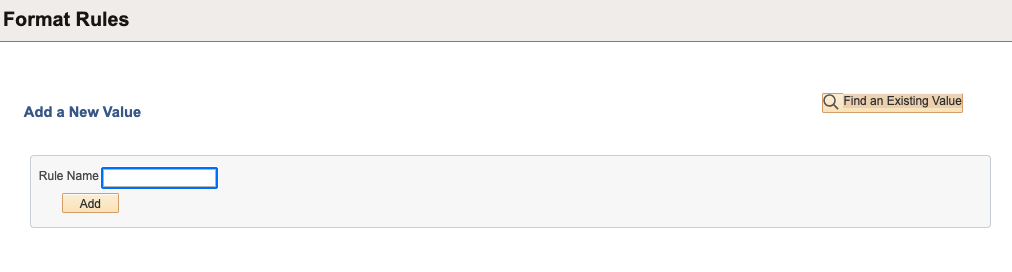
Enter the desired Format Rule Name and click Add. As long as the rule name is valid and does not match an existing rule name, a page to create the format rule will open.
Creating/Updating a Format Rule
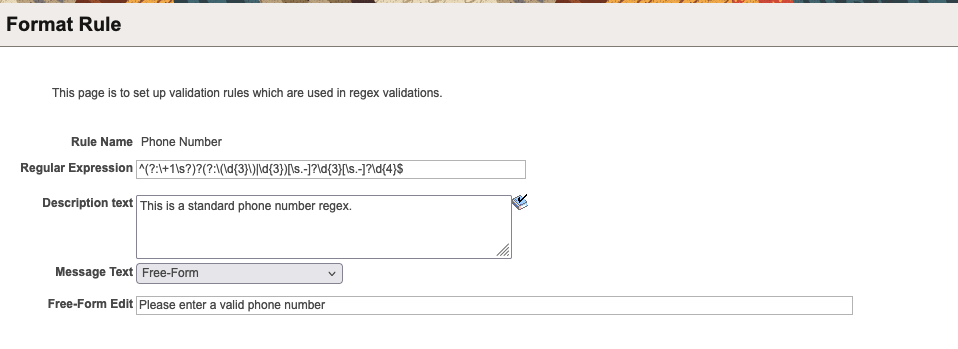
| Field | Value/Use |
|---|---|
| Rule Name | Read-only field showing the name of the rule being created/edited. |
| Regular Expression | Enter the desired Regular Expression. |
| Description text | Enter a description of what formatting rule(s) the regular expression enforces. |
| Message Text | Dropdown with "Free-Form" and "Message Catalog." Selecting "Free-Form" will display an empty text box to enter the error message that appears when a format error occurs. Selecting "Message Catalog" displays a Message Set Number and Message Number prompt to choose a Message Catalog entry that appears when a format error occurs. |
| Free-Form Edit | Shows when "Free-Form" was selected for Message Text. Enter the error message text that will display when the entered value does not match the regex. |
| Message Set Number | Shows when "Message Catalog" was selected for Message Text. Enter or Select the Message Set Number of the desired message set. |
| Message Number | Shows when "Message Catalog" was selected for Message Text. Enter or Select the Message Number of the desired message. The selected message will display when the entered value does not match the regex. |
Once the setup is complete or changes are made, click "Save" at the bottom of the page. This Format Rule can now be assigned to a specific field. More information about adding a Format Rule to a specific field can be found in the Pages Tab Documentation.
Format Rules On a Field
After a format rule is applied to a field, the format rule will be checked under the following conditions:
- The field's value is changed
- A server trip is made
- The Next button is clicked
- Certain form actions are taken, such as Submitting the form
If the entered value does NOT meet the requirements imposed by the regular expression, a validation error will appear. Here's an example:
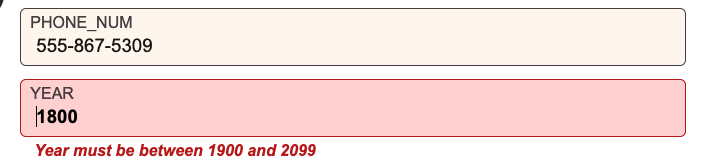
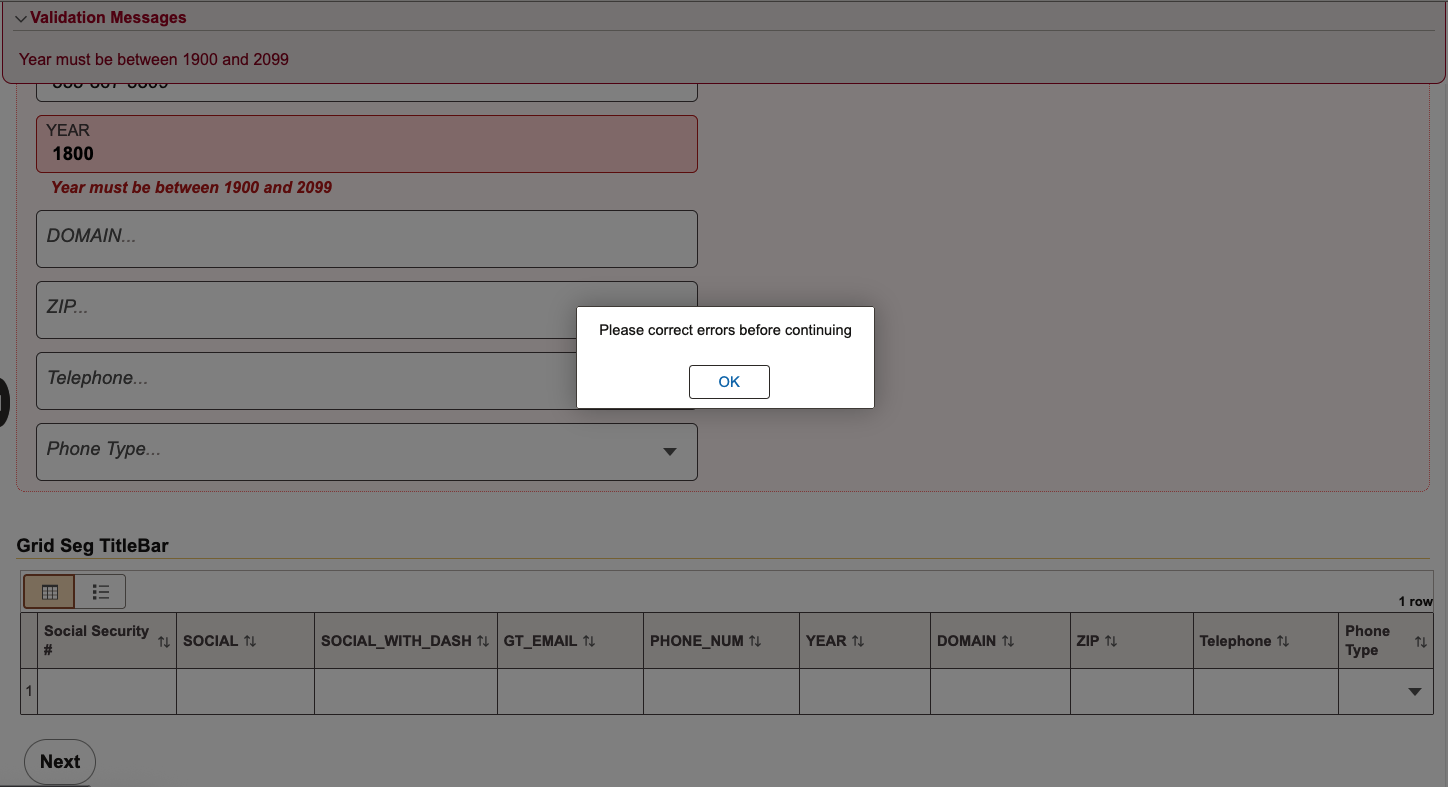
Clicking Next or Submit would result in a message box popping up and the validation showing at the top of the page.
Fields with built-in formatting
An edge case to be aware of is that certain fields in PeopleSoft have a built-in format defined at the App Designer level. One example is the PHONE field.
When creating a custom phone number field, there's no built-in formatting to consider. So a format rule can help validate phone number formats.
If the following values are valid:
- 5558675309
- 555-867-5309
- 555.867.5309
- +1 555 867 5309
- (555) 867-5309
However, if the same format rule is applied to the PHONE field, once the built-in format from App Designer is applied, the common format in PeopleSoft would be: 555/867-5309. If the regular expression in the format rule doesn't allow for a / after 555, a validation error would occur, preventing the user from submitting the form.

When trying to submit the form:
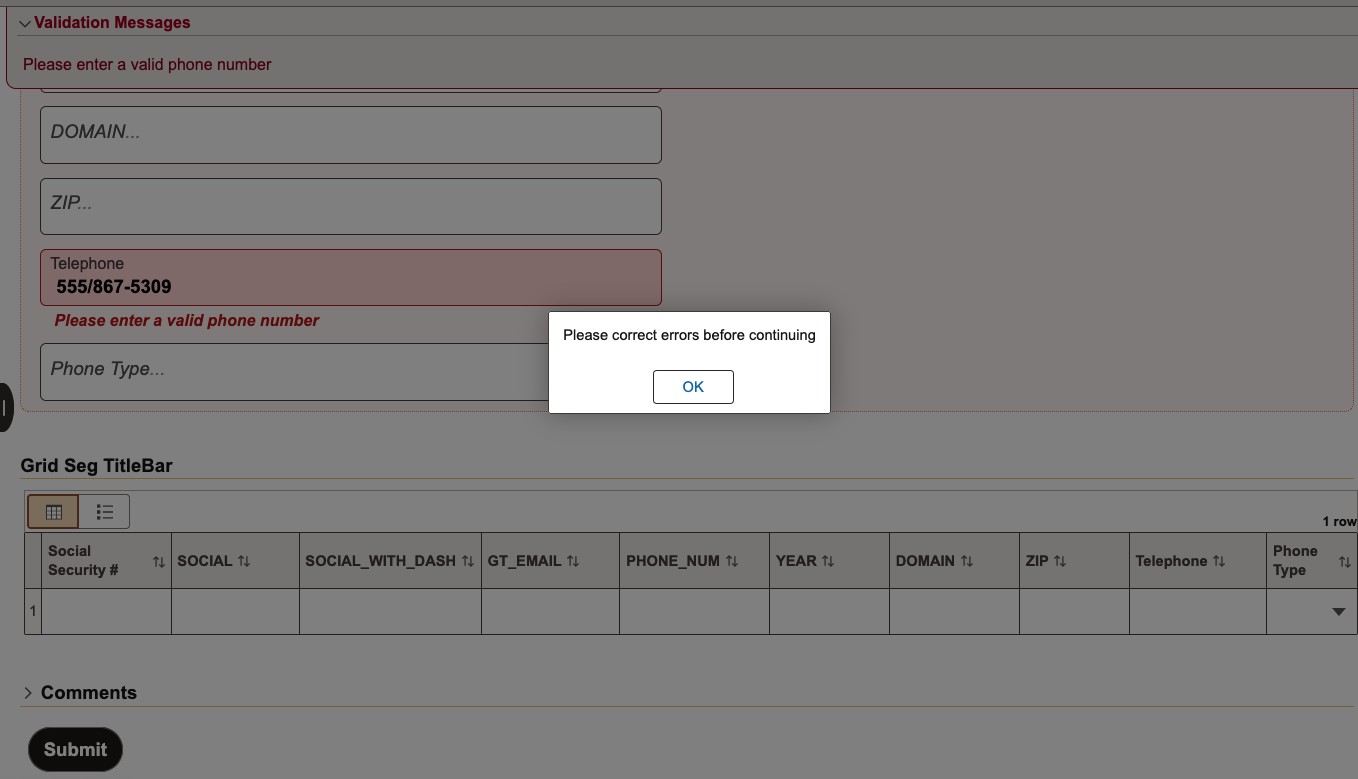
Because of this, applying format rules to a field with built-in formatting is not recommended.
Regular Expression Format
NOTE: For 99+% of use cases, the following information will not be relevant. It's included for reference only in edge cases.
Regular Expression evaluation varies slightly across technology stacks. For example, the formatting of an edge-case regex string in Python may be slightly different than the same regex string in Java. GT eForms evaluates regex strings in two contexts:
- In the client browser via JavaScript
- In the app server via PeopleCode, which ultimately triggers Java
As such, when constructing regex strings, be sure to construct versions that are compatible with JavaScript and Java.