Visual Ifs
This powerful part can be used in various places when setting up GT eForms. Visual Ifs allow for the functional definition of conditional logic. If the defined statement evaluates to true then associated setup will occur. A Visual If that returns false indicates that the associated setup should be skipped.
Visual Ifs can be found throughout Form Setup.
Visual If Icon
Click on the Visual If icon to open the setup page. A white icon indicates that no Visual If has been configured for the associated setup. A blue icon indicates that Visual If logic has been configured.


Visual If Expression Configuration
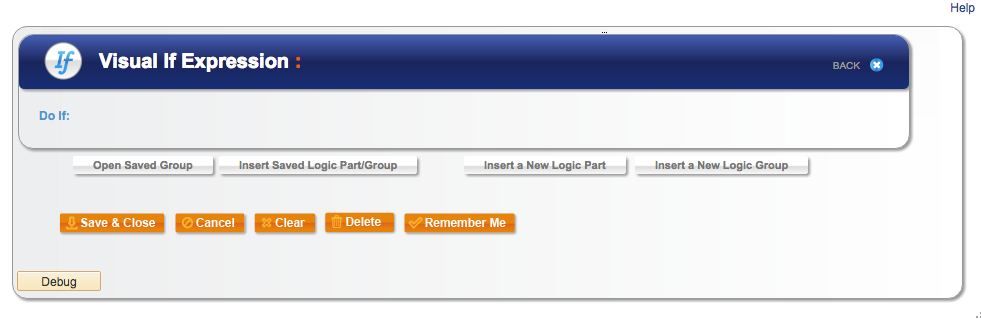
Upon clicking a Visual If icon, its Visual If Expression configuration page opens up. Here, new Visual If statements can be created or an existing Visual If can be selected/edited.
| Visual If Expression |
|---|
 |
| Field | Value/Use |
|---|---|
| Open Saved Group | Select from a list of saved Visual If groups. This will populate the visualizer with the group so it can be editted. Any edits to the group will update the group in all places the group is used elsewhere in the form. |
| Insert Saved Logic Part/Group | Select from a list of all saved visual if parts and groups, including configured parts and groups, as well as code-based parts and groups like PeopleCode parts. |
| Insert a New Logic Part | Opens the Visualizer with configuration for a single logical expression. |
| Insert a New Logic Group | Opens the visualizer with configuration for a group. Drill into the group and create new parts within it. |
| Save and Close | Save the current Visual If and close the window. |
| Cancel | Click Cancel to exist without saving. |
| Clear | Click Clear to delete all configuration and start over. The clear button keeps the visualizer open. |
| Delete | Click Delete to delete all configuration and exit the visualizer. Use this option to simply remove logic. |
| Remember Me | Name the Logic Part or group for reuse. |
Logic Visualizer
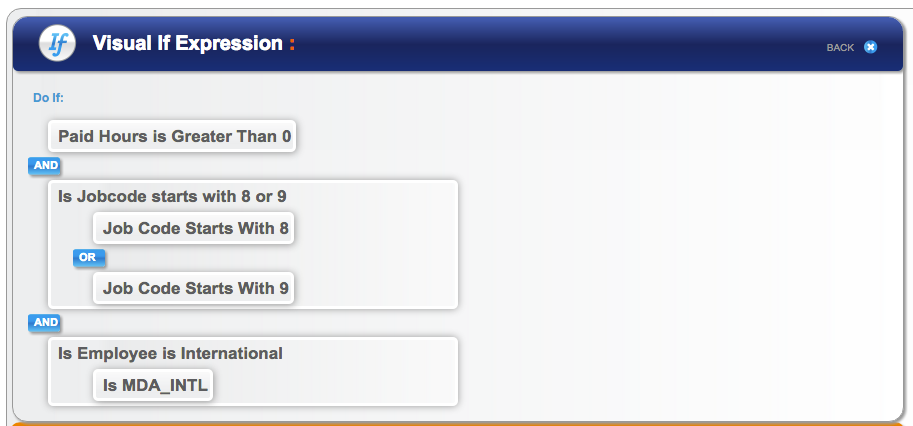
The Logic Visualizer displays the conditional logic that is set in an easy-to-read format. You can navigate a Visual If by clicking on the part you wish to isolate on the visualizer: Doing so refreshes the visualizer to only display the clicked part.
| Visual If Expression Visualizer |
|---|
 |
Insert a New Logic Part
| Visual If Expression – Insert a New Logic Part |
|---|
 |
| Field | Value/Use |
|---|---|
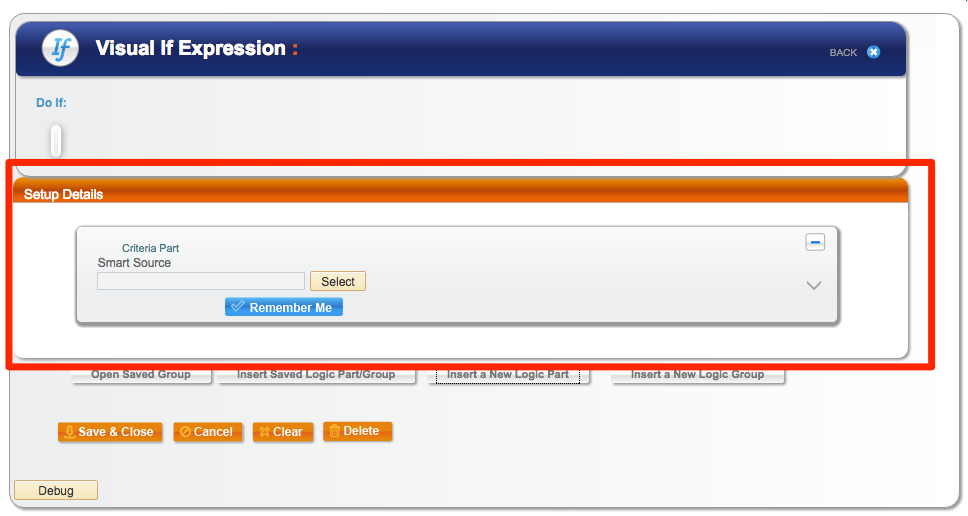
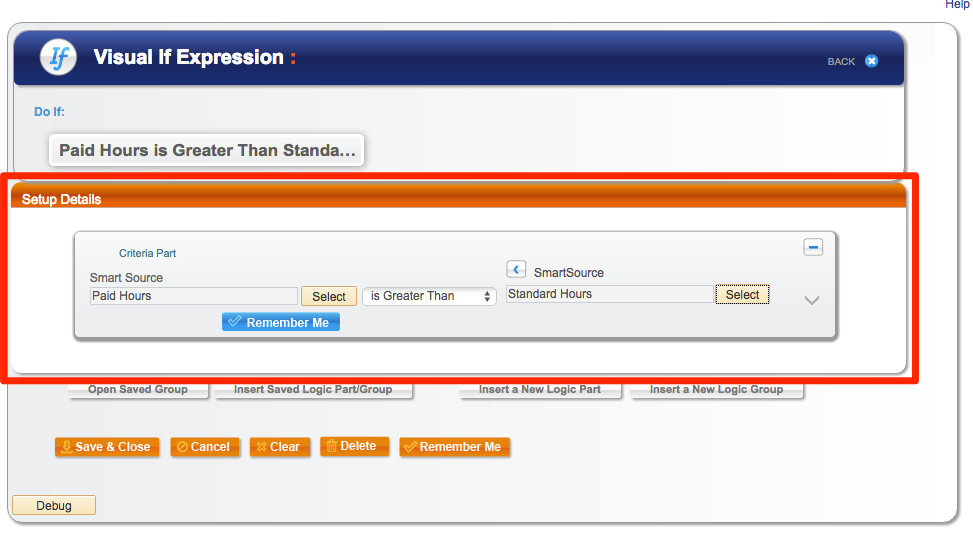
| Smart Source Select | Select a Smart Source. The conditional logic is based on this field. |
| Operator | Select an operator from the drop down list to build the logic statement. |
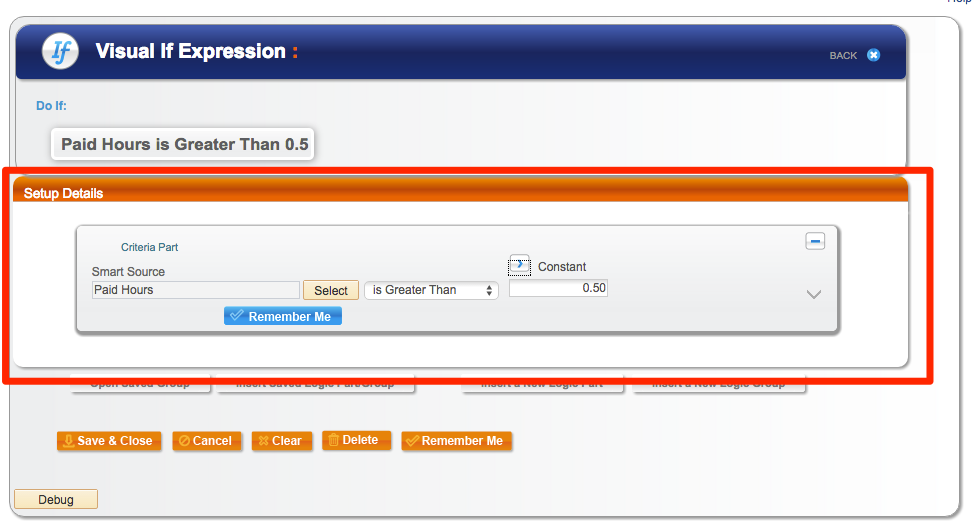
| Field toggle |  Smart Source. Select the smart source to use in the logic statement. Smart Source. Select the smart source to use in the logic statement.  Constant. Enter the constant value to be used in the logic statement. The field type for the constant field will match the field type of the selected smart source. Constant. Enter the constant value to be used in the logic statement. The field type for the constant field will match the field type of the selected smart source. |
 | View debugging information. |
| Remember Me | Save this logic part to be use in other logic expressions. |
| Visual If Expression – Insert a New Logic Part with a constant value |
|---|
 |
| Visual If Expression – Insert a New Logic Part with a smart source value |
|---|
 |
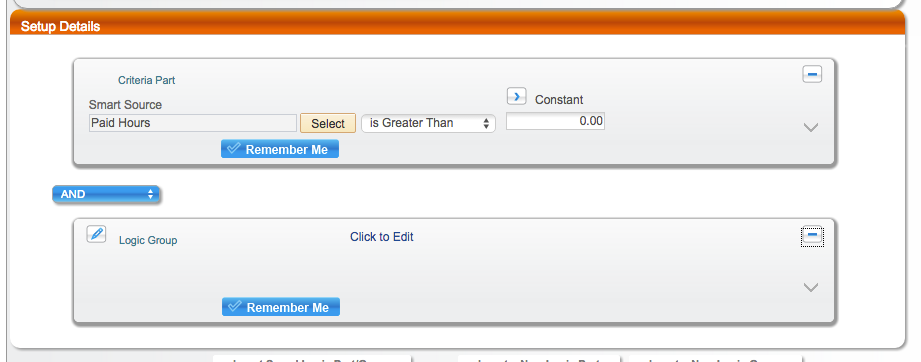
Insert a New Logic Group or Insert Saved Logic Part/Group
| Visual If Expression – Insert a New Logic Group |
|---|
 |
| Field | Value/Use |
|---|---|
 | Select the AND or OR logic for the logic statement. Note that you can only use all AND or all OR at a specific level. To mix AND and OR logic statements, use multiple group levels. |
 | Field can be set to Is or Is Not. This allows the use of a single logic part for both positive and negative logic. |
 Click to Edit Click to Edit | Use this icon or the ‘Click to Edit’ link to open the group and begin design. Note that PeopleCode Logic parts cannot be changed in this interface. |