Routings Tab
The Routings tab is where you set up an approval workflow for your form. Paper forms often have several approvers. The Routings tab can be set up to replicate that approval flow.
Navigation: Manage GT eForms 3.x > Form Setup - Routings tab
Routings
The Routings Tab associates a PeopleSoft Approval Workflow Engine (AWE) Definition ID with the form type. See the AWE Configuration Settings document for more information.
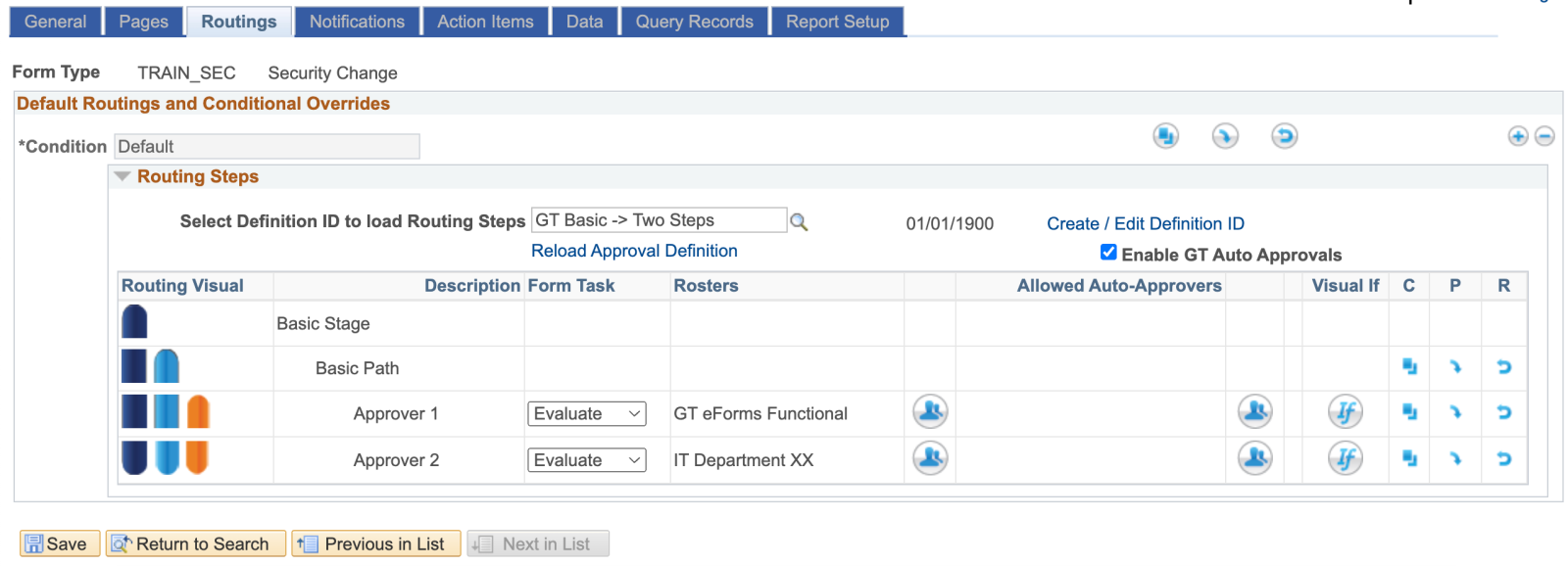
| Field | Value/Use |
|---|---|
| Form Type and Description | Displays the form type ID and description for reference |
| Condition | Each form will have a default condition. Additional conditions can be configured by using the plus button. |
| Copy (button) | Copy the current condition |
| Paste (button) | Paste the copied condition |
| Revert (button) | Revert the condition to the default |
| Definition ID | Selects the Approval Process Definition ID Gideon Taylor delivers the GT Basic Process ID for single stage, single path approval workflows. There are several Definition IDs within the GT Basic process that offer varying numbers of steps. GT Basic definitions can be used in combination with participation rosters. These definitions can be used for very basic approval workflows, but they should not be altered since GT may deliver updates to them. A custom Process ID can be created with the AWE Setup Page to configure advanced workflows If blank, form will not route for workflow Note: changing a definition ID will clear any existing configuration on the Routings tab |
| Date | The effective date of the Approval Process Definition |
| Create/Edit Definition ID (link) | Opens PeopleSoft Approval Process Definitions |
| Reload Approval Definition (link) | Reloads the current approval definition including any changes |
| Enable GT Auto Approvals | Check this box to configure a Roster to auto approve a step |
| Routing Visual | A visual representation of the routing Stage – Dark Blue Path – Light Blue Step – Orange |
| Description | Process Definition ID description |
| Form Task | The form task used at that step. The Evaluate form task is the most used. |
| Rosters | Displays User List or Roster description |
 | Click this icon to configure a Roster for an approval step. Refer to the Roster Engine section for detailed instructions on how to set one up. |
| Allowed Auto Approvers | Displays User List of Roster description. If a user is in the roster step, the Allowed Auto-Approvers list, and they approved the form in a previous step, the form will be automatically approved at said roster step. |
| Click this icon to configure a Roster for an auto approval at this step. |
| Visual If | Configures a Visual If Expression. Refer to the Visual If section for detailed instructions on how to configure. |
| Copy | Copies the current path/step |
| Paste | Pastes the copied path/step |
| Revert | Reverts the path/step to the default |
| Run Form Build / Build Detail (Link) | Form Build Option set to “Build Immediately on Save” – No link will appear. Form Build Option set to “Save Without Building” – The link “Run Form Build” will appear and when selected will open the Form Type Build component in a modal window. Form Build Option set to “Schedule Build on Save” – The link “Build Detail” will appear and when selected will open the Form Type Build component in a modal window. Note: Review the Form Type Build feature document for more information. |