Jump List
The Jump List lets users move between the forms returned by a search without going back to the search page. When a user opens a form from search results, the form shows Previous and Next buttons and a dropdown of every form in the results, so the user can step through the forms in order or jump straight to any one of them. It's similar to PeopleSoft's Next in List, with the added ability to jump to any form in the list.
Introduced in GT eForms 3.77.00. You set it up per search, on the Jump List tab of Search Configuration.
Navigation: Manage GT eForms 3.x > GT Functional Setup > GT System Setup > Search Configuration > Jump List tab
- Update, Evaluate and View searches only. It isn't available for the Add task.
- Helium forms with fluid enabled only.
- Only when the search returns more than one form.
Using the Jump List
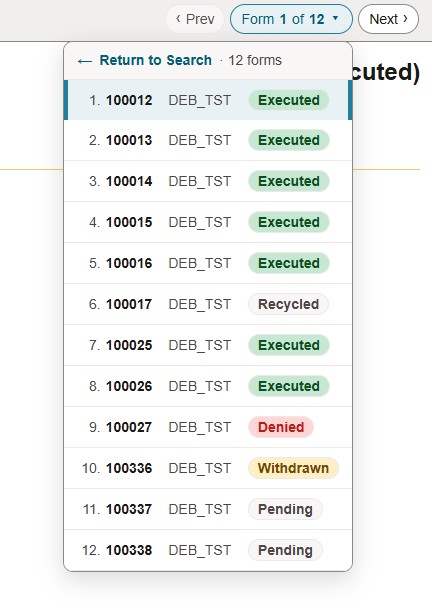
After you search and open a form, the Jump List appears at the top-right corner of the form page:
| Control | Use |
|---|---|
| Prev (button) | Opens the previous form in the search results. Disabled on the first form. |
| Form n of total (button) | Shows where the current form sits in the results. Click it to open the dropdown. |
| Next (button) | Opens the next form in the search results. Disabled on the last form. |
| Return to Search | The first row of the dropdown, with the number of forms. Returns to the search page. It shows only when the form has the Return to Search button. |
| Form rows | One row per form, in the order of the search results: the row number, then the fields set up for the Jump List in Search Configuration. The current form is highlighted. Click a row to open that form. |
If Form Status is one of the Jump List fields, each status is shown as a colored label:
| Color | Statuses |
|---|---|
| Green | Executed, Signed, Authorized |
| Red | In Error, Denied |
| Amber | On Hold, Withdrawn |
| Gray | Pending, Saved, Resubmitted, Recycled |
Keyboard
| Keys | Use |
|---|---|
| Alt+Left Arrow | Opens the previous form. |
| Alt+Right Arrow | Opens the next form. |
| Up Arrow, Down Arrow, Home, End | Move between rows while the dropdown is open. |
| Enter or Space | Opens the selected row's form. |
| Escape | Closes the dropdown. |
Note: On a form with the Jump List, Alt+Left Arrow moves to the previous form instead of acting as the browser's Back shortcut.
Forms That Are No Longer Available
Before it opens a form, the Jump List checks that the form is still returned by the user's search, so users can't reach a form they no longer have access to. A form that fails the check is removed from the list and the user sees a message listing the removed form IDs. Prev and Next skip over it to the nearest form that passes. If no form passes in that direction, the user stays on the current form and sees a message saying so.
Set Up the Jump List
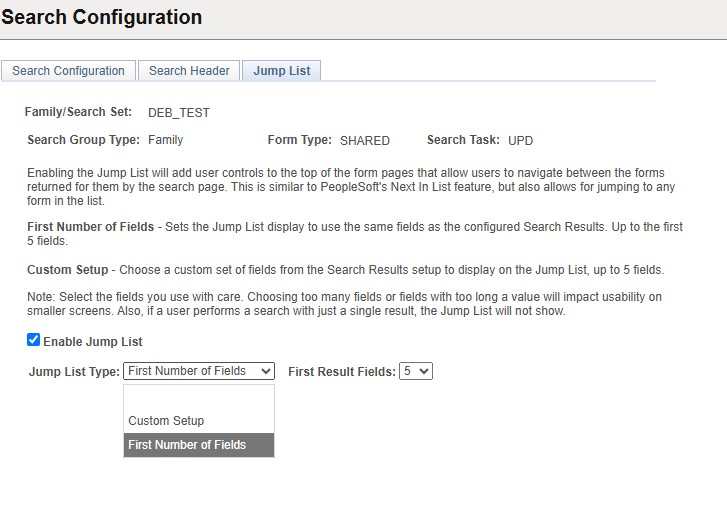
The Jump List tab sits beside the Search Configuration and Search Header tabs. Its settings belong to the same search as the other two tabs: one family or search set, one task.
| Field | Value/Use |
|---|---|
| Family/Search Set | The current form family or search set. |
| Search Group Type | Either Family or Search Set. |
| Form Type | SHARED for Update, Evaluate and View searches. |
| Search Task | The current search task. |
| Enable Jump List (checkbox) | When checked, forms opened from this search show the Jump List. When unchecked, they don't. |
| Jump List Type | First Number of Fields or Custom Setup. See below. |
| First Result Fields | First Number of Fields only. How many of the leading result fields to show, from 1 to 5. |
| Field Name | Custom Setup only. A result field to show in the Jump List. |
| Up / Dwn (buttons) | Custom Setup only. Move the row up or down. Fields show in the Jump List in this order. |
| Plus / Minus (buttons) | Custom Setup only. Add or delete a row. You can have up to 5 rows. |
On the Add task, the tab says that a Jump List isn't supported, and the setup fields are hidden. If the search has no result fields yet, the tab asks you to set them up and save on the Search Configuration tab first.
First Number of Fields
When this option is chosen, the Jump List shows the same first result fields as the search, in the order set on the Search Configuration tab and up to the number selected in First Result Fields. Only result fields with Show checked count.
Custom Setup
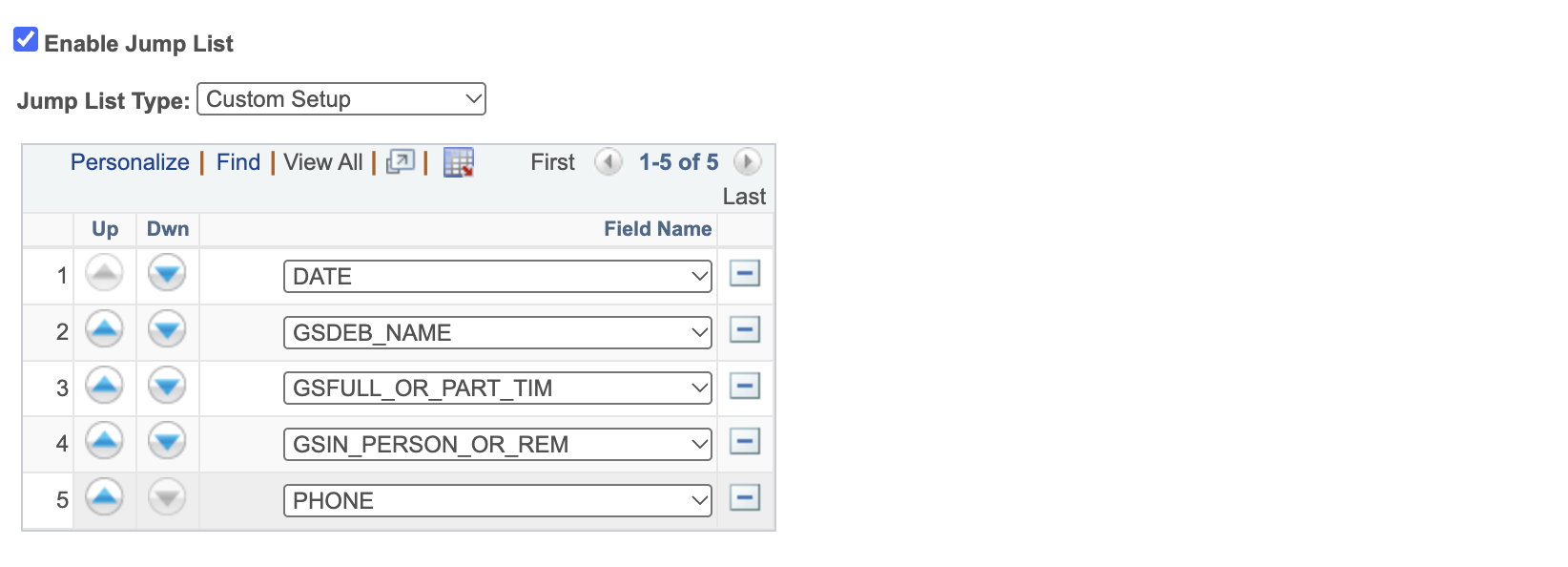
Choose up to 5 fields from the search's result fields, in any order. Each field can be used once.
Choose fields that tell forms apart at a glance, such as Form ID, a name and Form Status. Consider the width of your choices too: using all 5 fields, or fields with long values, makes the Jump List harder to use on smaller screens.
Jump List Column on the Search Configuration Tab
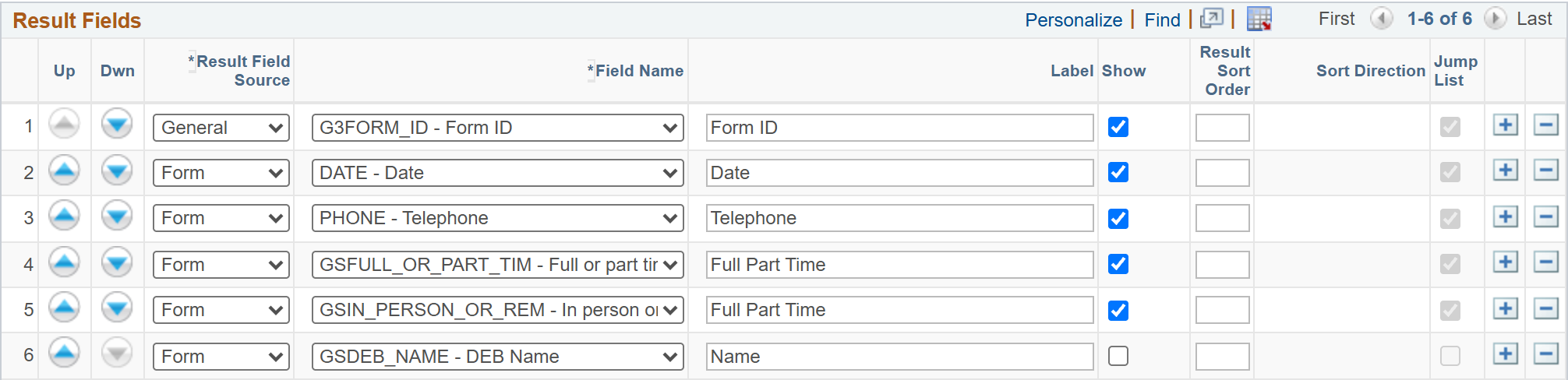
When the Jump List is enabled, the Result Fields grid on the Search Configuration tab has a Jump List column. It's checked for each result field the Jump List shows. It's display only: change the fields on the Jump List tab.
Changes Made When You Save
When you save, the Jump List settings are checked against the search's result fields, and adjusted with a message if they no longer fit:
- First Number of Fields is lowered when it's more than the number of result fields with Show checked.
- Custom Setup rows are removed when their field is no longer a result field.
- Enable Jump List is unchecked when no result fields are left for it to show.
Defaults
- New searches: when an Update, Evaluate or View search is first saved with result fields, the Jump List is enabled with First Number of Fields, and First Result Fields is set to 3, or to the number of result fields if that's fewer. Clicking Default on the Search Configuration tab sets the same values.
- Upgrading to GT eForms
3.77.00: the upgrade's System Maintenance step enables the Jump List on existing Update, Evaluate and View searches that have result fields, with First Number of Fields, and First Result Fields set to 3, or fewer if the search has fewer result fields. Add searches, and searches with no result fields, have it turned off. The step only sets searches that have no Jump List settings yet, so running it again doesn't change your settings.
Security
The Jump List tab is granted to the G3FORMFUNC and G3FORMTECH permission lists, with the rest of the Search Configuration component.
Form Transporter
The Form Transporter exports the Jump List setup along with the rest of the search configuration.
Translating the Jump List
The Jump List's labels and messages come from the message catalog, message set 24842, so you can translate them there. Labels: 80 (Next) and 366–378. Messages: 341 and 344–348.