Search Configuration
Search Configuration provides functional setup for the eForm search pages presented to end users. Its primary purpose is to define which fields users can search by and which fields are displayed in the search results. Additionally, this tool can optionally be used to supply a page title and instructions, customize field labels for both search and results fields, and provide language translations for the title, instructions and all field labels.
When configuring a search, you will be able to select fields from three sources: General fields that are shared across all eForms, Form fields that belong to the specific forms included in the search, or Search fields that come from any custom search records applied to those forms for the selected task.
Navigation: Main Menu > Manage GT eForms 3.x > GT Functional Setup > GT System Setup > Search Configuration
Search Page
Search Configuration is defined per family or search set. Each Form Type has its own Search Configuration for the Add task. For each of the other tasks—Evaluate, Update, and View—Form Types that belong to the same Family or Search Set share both the search and its associated task-based Search Configuration (shown as SHARED under Form Type). To search by Form Type, Task or Search Group Type use the Advanced Search option on the search page.
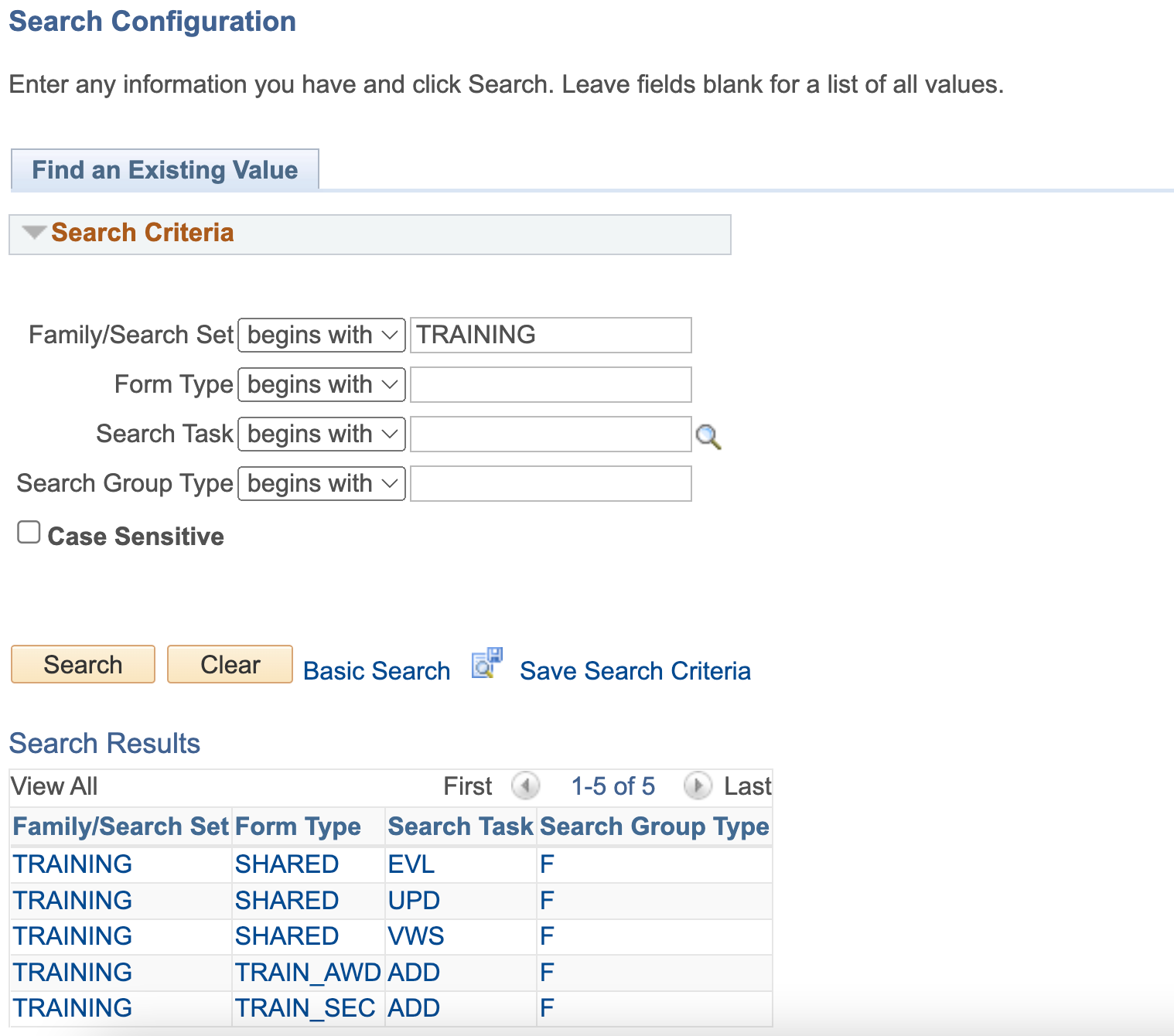
Add Task Search Configuration
No Add Search
For Add Task searches, if a Form Type does not have an Add Search Record configured, the setup page displays the following message:
“No Add Search page will display for this form because no Search Record is set up for the Add Task.”
In this case, users will not see a search page before starting a new form. For details on configuring an Add Task Search Record, refer to the Form Setup documentation on setting up search records.
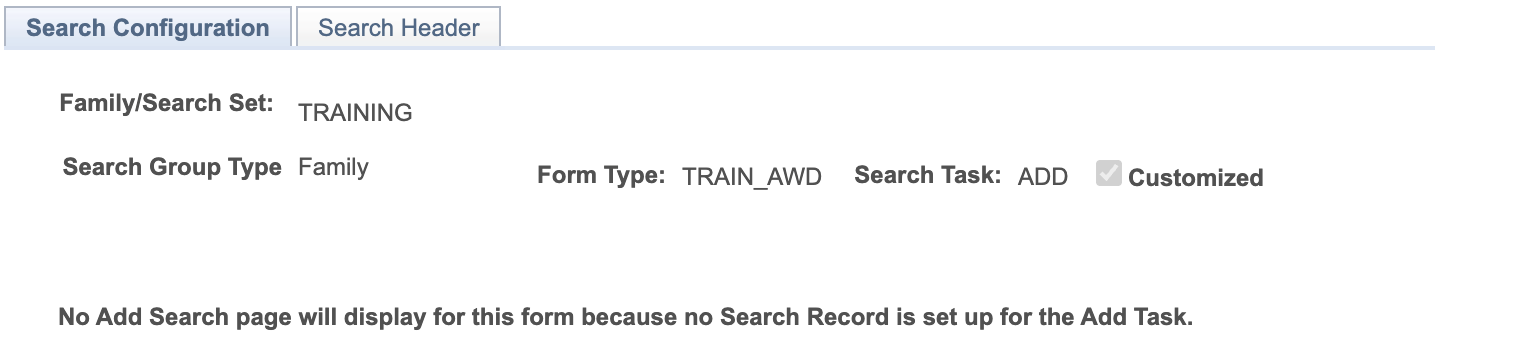
Add Task Search
If an Add Task Search Record is configured, you can configure the search that users see when creating a new form. Here's an example of what the Add Task Search Configuration might look like:
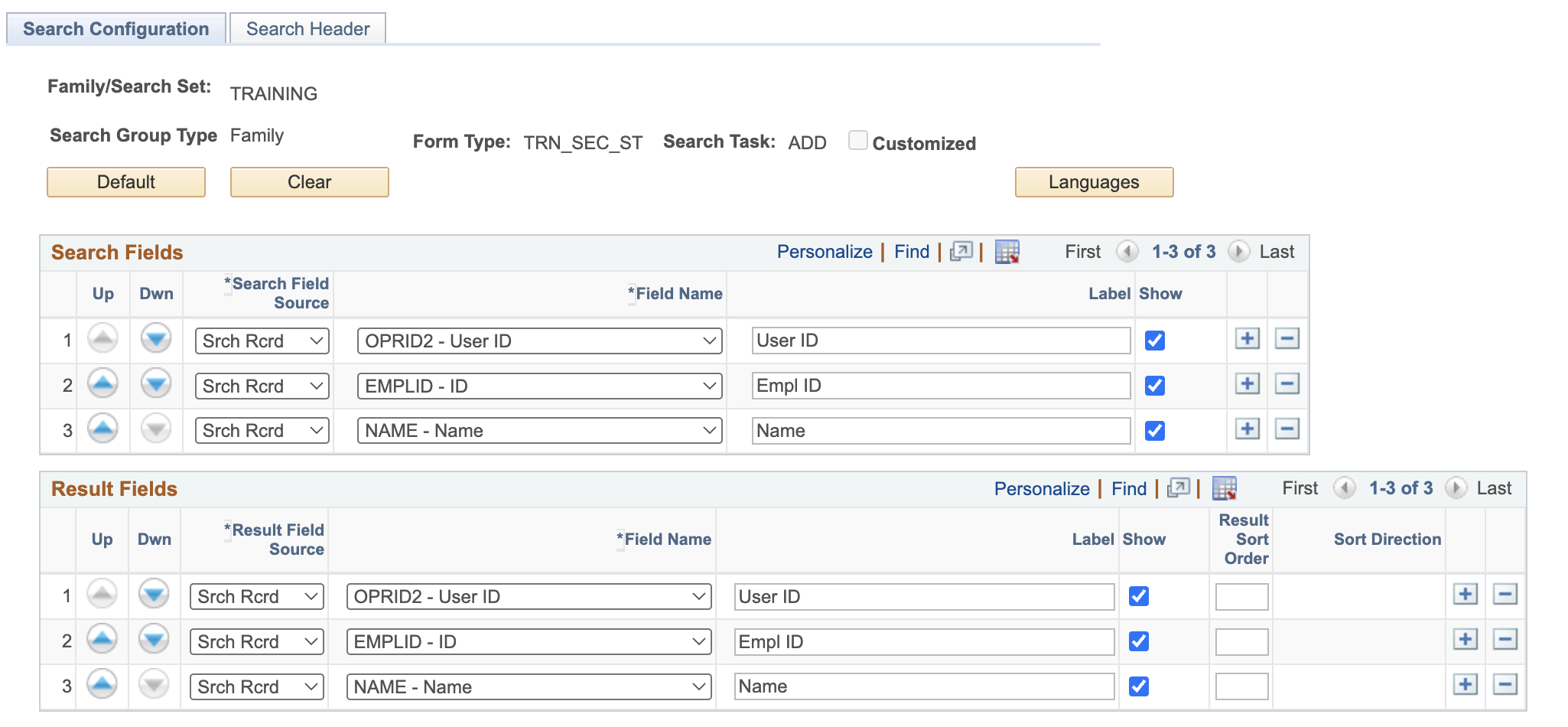
The Add Task Search configuration is the same as the configuration for the Update, Evaluate, and View tasks described in the next section, with the following exceptions:
- The only available Search Field Source is Srch Rcrd. General and Form fields are not available to the Add Search, as the form has not yet been created when interacting with the Add search.
- When using the Default button, only the fields from the Add Search record will be loaded into the Search Fields and Result Fields grids.
- The Copy from buttons are not available for Add Searches.
Update, Evaluate, and View Task Search Configuration
Search Configuration for the Update, Evaluate and View tasks are shared across Form Types in a Family or Search Set. These Shared configuration screens are similar to the Add task configuration but do include several additional options.
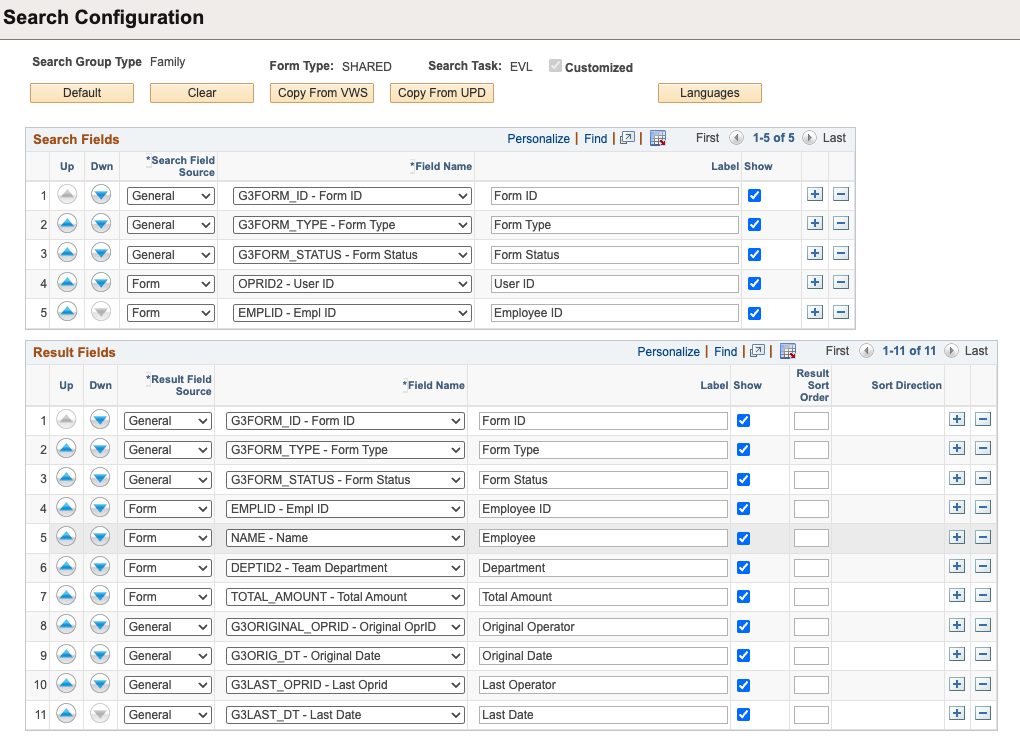
Search Fields
When defaulted, this section displays a combination of fields, starting with the General fields: Form ID, Form Type, and Form Status. Next, it will include Search Record fields marked as search keys in the search record(s), followed by Form fields. You may add, remove, and reorder these fields as needed. However, there is a maximum of 8 Search Fields.
Results Fields
When defaulted, this section also displays a combination of fields, starting with the General fields: Form ID, Form Type, and Form Status. Next, it will include Search Record fields marked as list box items in the search record(s), then Form fields, followed by General fields Original OprID, Original Date, Last OprID, Last Date. You may add, remove, and reorder these fields as needed. However, there is a maximum of 20 Search Result fields.
Field Sources
Form
The available values for a Form field will include all configured fields from all Form Types within the Family or Search Set.
Search Record (Srch Rcrd)
The available values for Search Record fields will include all fields from Search Records configured across the Form Types within the Family or Search Set, but only those configured for the current Task.
General
The available values for General fields are a set of framework defined fields that all eForms share.
Field Labels
When defaulted, the field’s default label (as defined in the field definition) is automatically loaded into this edit box. You may modify this value to display an alternate label on the search page. If the edit box is left blank, the field’s default label will still be used on the search page.
Note: The ability to define field labels on this page was introduced in framework release 3.75.00. If a Search Configuration was created on a previous framework version, it is normal for the label fields to all appear blank. Since blank values fallback to the field’s default label, you may either leave them blank or enter values as desired.
Search Configuration Page Elements
| Field | Value/Use |
|---|---|
| Family/Search Set | Current Form Family/Search Set |
| Group Type | Either Family or Search Set |
| Form Type | Current Form Type |
| Search Task | Current Search Task |
| Customized | Automatically checked if default configuration is changed |
| Default | Revert configuration to default |
| Clear | First click – remove any rows with the show flag unchecked Second click – clear all configuration |
| Languages | Opens modal component to provide alternate Language values for search elements. - Additonal information available in later section. |
| Copy from VWS/UPD/EVL | Copy all configuration from another Shared task in the same family/search set (not availble for Add search setup) |
| Up | Move the selected row up |
| Down | Move the selected row down |
| Search Field Source | The source of the search field – General, Search Record, or Form. Note: only Search Record can be used on Add searches |
| Field Name | The field to use and its label |
| Label | Can be used to modify and/or change the language for what is returned in the Search Fields/Search Results for the Field Name. If the Label field is empty the Search Field/Search Results will default to the Field Name If a Label exists it will be returned in the Search Fields/Search Results If a Multilanguage Label exists the alternate language will be returned in the Search Fields/Search Results. |
| Show | Checked – will appear on the search page Unchecked – will be removed from search configuration |
| Sort Order (Results only) | Sort by this column. If selecting multiple, can specify priority (1, 2, 3) |
| Sort Direction (Results only) | Ascending or Descending |
| Plus | Add a row (Limit: 20) |
| Minus | Delete a row |
Search Header Page
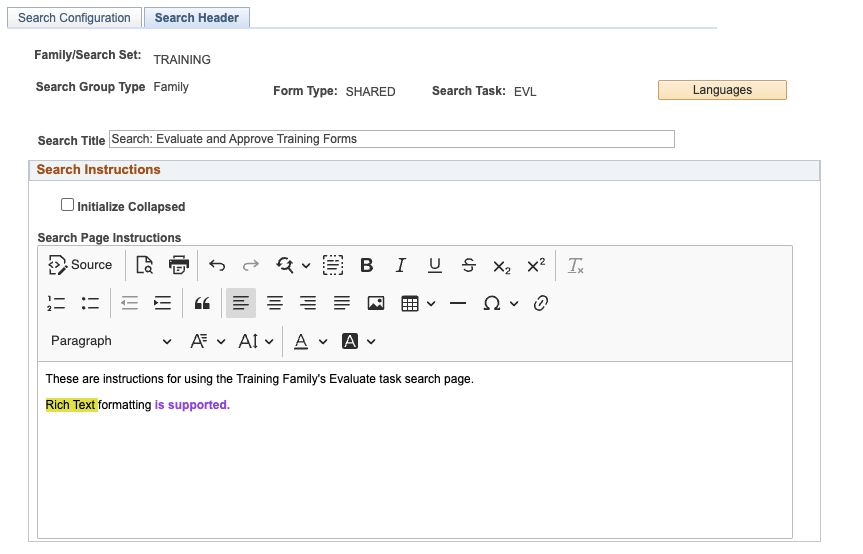
Begining with framework release 3.58.05 you have the ability to provide an optional title and instructions that will show to users on a search page.
Navigation: Main Menu > Manage GT eForms 3.x > GT Functional Setup > GT System Setup > Search Configuration -Search Header tab
To configure these items use the Search Header tab found on the Search Configuration compoent.
Search Title
Search Title is an optional value that, when provided, will appear to users as bolded header text at the top of the search page. If left blank, this section will not appear on the search page.
Search Instructions
Search Instructions is an optional rich text field that, when provided, will appear to users in an Instructions collapsible group box at the top of the search page. If left blank, this section will not appear on the search page. Also you may check the Initialize Collapsed checkbox if you want the Instructions group box to display in a collapsed state, requiring users to click to reveal the instructional content.
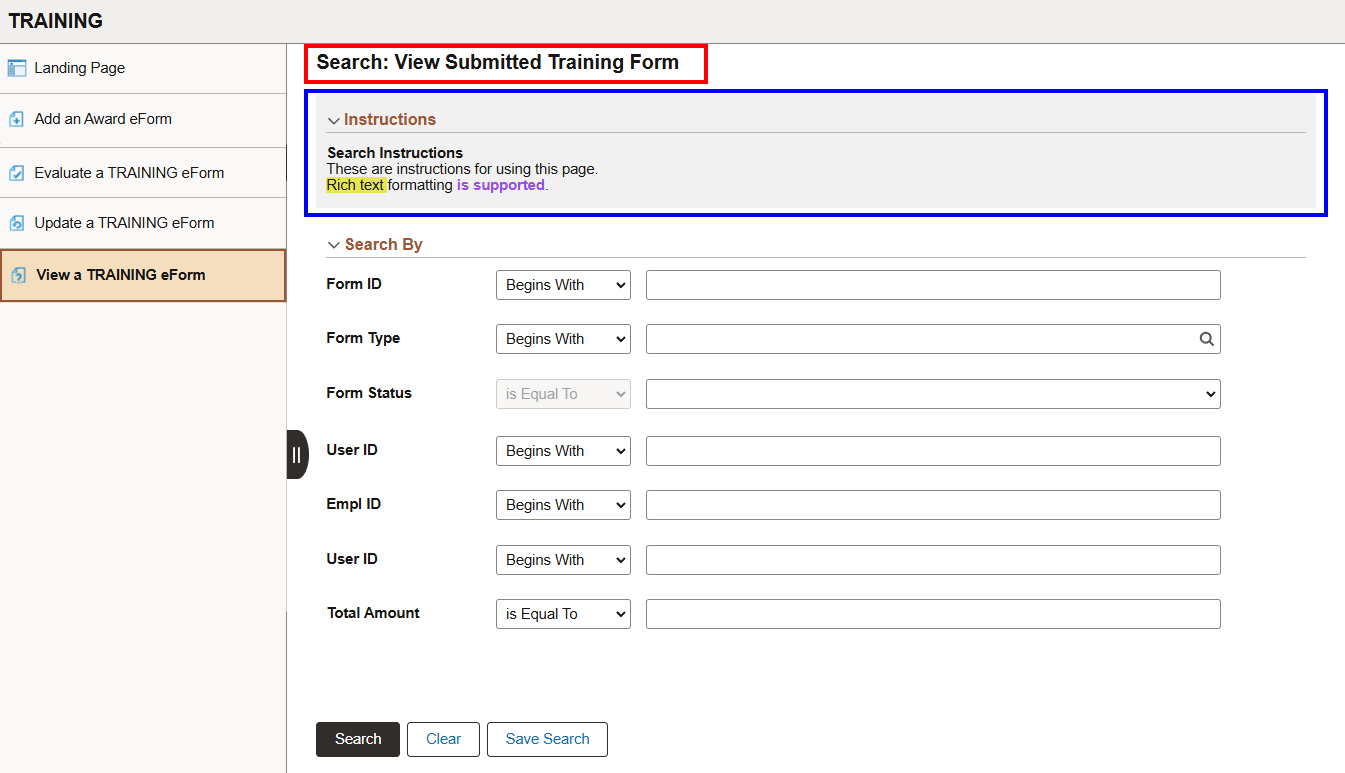
Search Title and Instructions -Example Output
The title and instructions will appear above the search fields on the search page. The two configurable elements shown:
- Title (red box)
- Instructions (blue box)
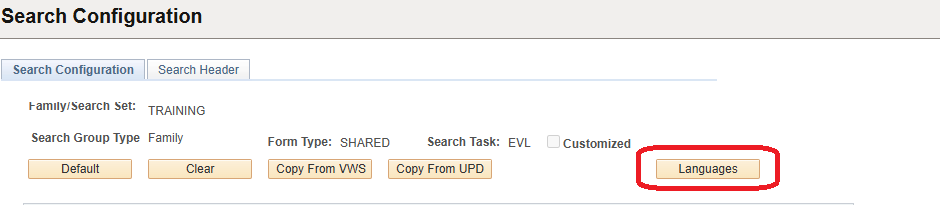
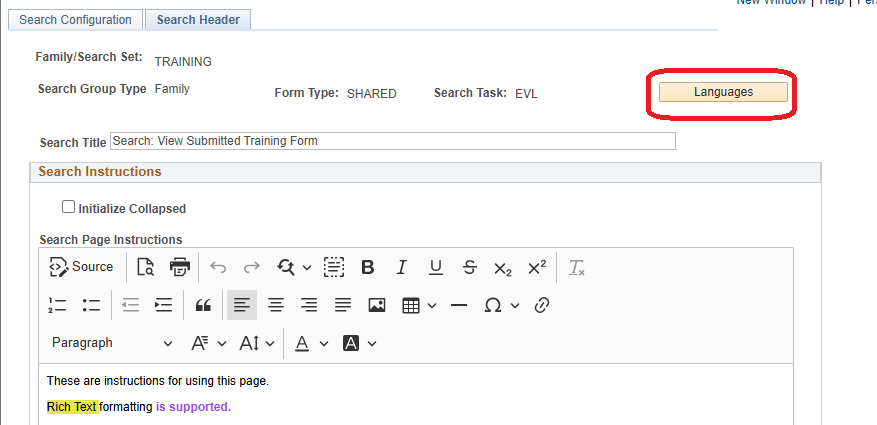
Languages Button
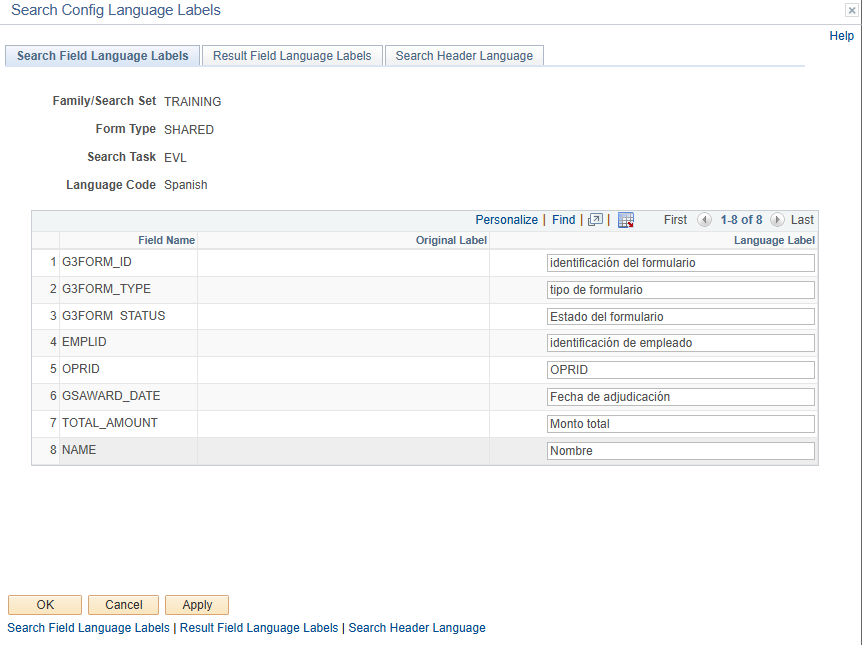
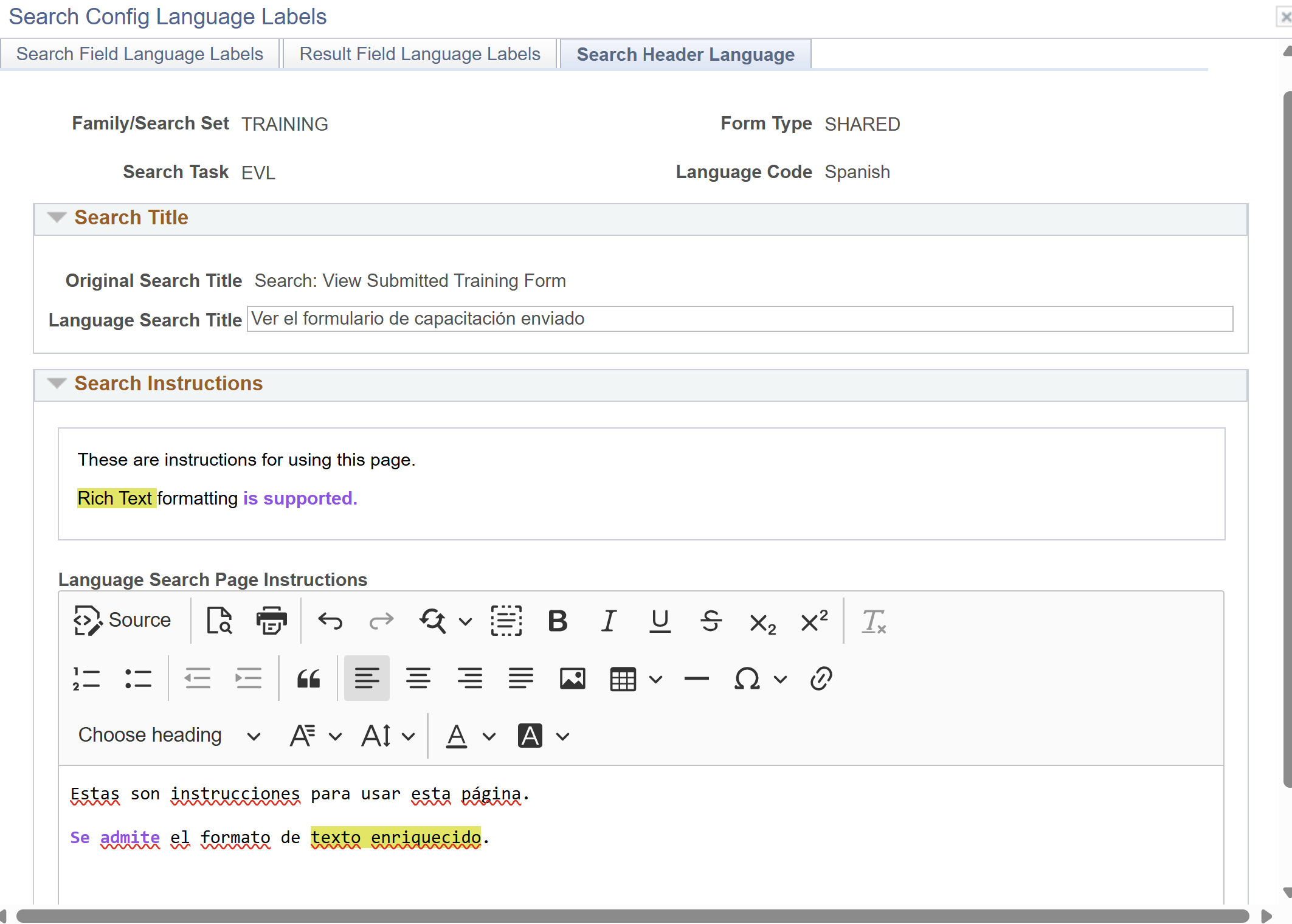
The Languages button is available on both pages of the Search Configuration component. When clicked, it opens a modal window where a Language Code needs to be selected. Once the desired Language Code is chosen, the modal displays a set of pages where you can enter values to provide translations for field labels, search title, and search instructions in the selected language.
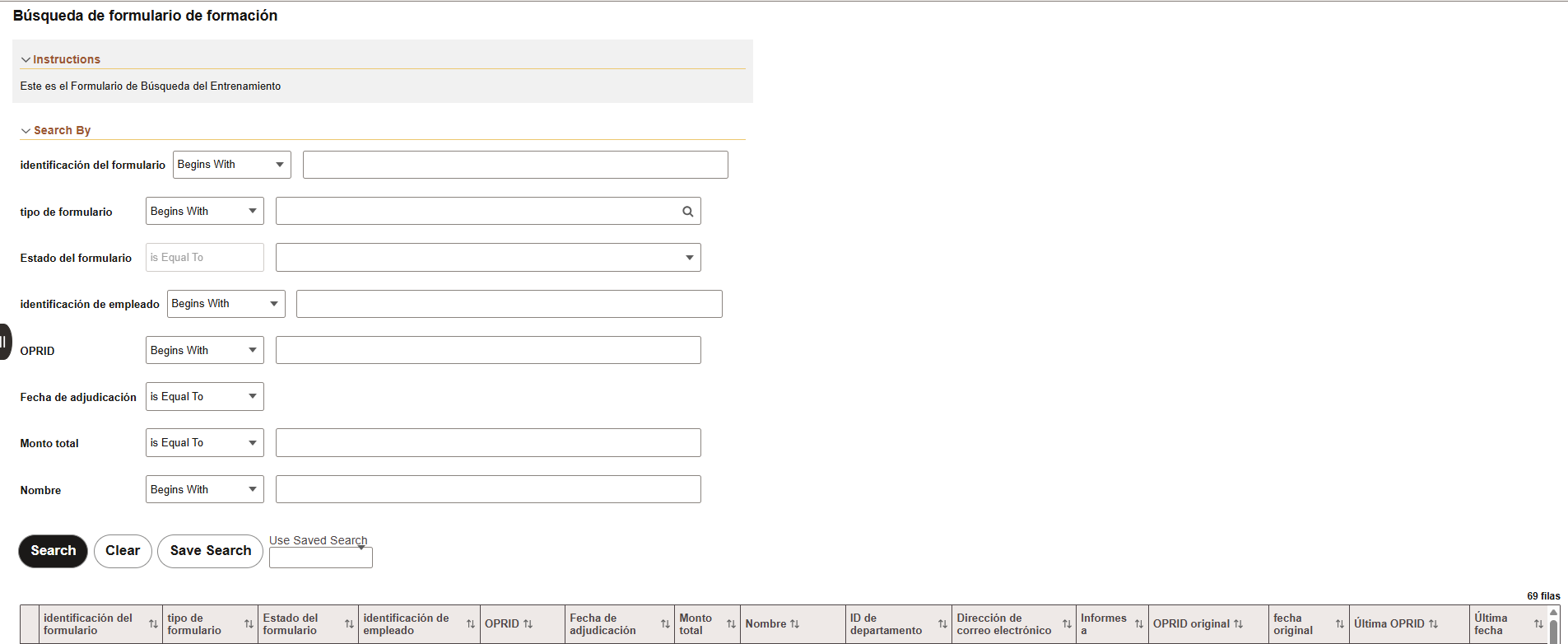
When a user’s language is set to one that matches entries in this setup, these translation values will be shown instead of the default values. If there is no setup for a given language code, or if any value is left blank, the default value(s) will be displayed instead.
Language Setup - Examples
Advanced Section
The Advanced Section is found as a collapsed group box at the bottom of the main Search Configuration page and provides the following setup options:
| Field | Value/Use |
|---|---|
| Formlist Record | Defaults to G3FORMLIST, but can be changed to use a custom view defined as a base Form List record. This custom view will control the fields available as “General” search field options. For example, this allows fields like Form Type Descr to be searched and returned in the search configuration without having to add them as hidden fields on forms. Changing this value is not recommended without advanced knowledge of the requirements of the selected Form List record. |
Saving a Search
This ability to save search criteria is available in GT eForms 3.58.01+. This allows end users to save their search criteria and reload those saved searches. By default, the button for “Save Search” will appear on all form search pages. To turn off this feature at the framework level, please take the following steps.
Navigate to Manage GT eForms 3.x > GT Functional Setup > GT System Setup > Form Installation Table.
Check for a value in the “System Application Package” field. If there is a value, add the following code to a SearchEvents class in the existing app package. If there is NOT a value, first create a new application package then add it to the System Application Package field and save the page. Then you can add the following code to a SearchEvents class in the new app package.
If you do not want to hide the Saved Search button for all forms in the environment, you can add the following code to a family app package or a search set app package instead to control which forms can use saved searches.
import G3SEARCH:Search;

class SearchEvents
   method FormSearchInit(&_Search As G3SEARCH:Search);
end-class;

method FormSearchInit
   /+ &_Search as G3SEARCH:Search +/
   GetLevel0()(1).G3SEARCH_DRV.G3SVSRC_NAME.Visible = False;
   GetLevel0()(1).G3SEARCH_DRV.G3SVSRC_SAVE.Visible = False;
   GetLevel0()(1).G3SEARCH_DRV.G3SVSRC_DEL.Visible = False;
   GetLevel0()(1).G3SEARCH_DRV.G3SVSRC_LOOKUP.Visible = False;
   GetLevel0()(1).G3SEARCH_DRV.G3SVSRC_PB.Visible = False;
end-method;
Search Fields
The search fields available will be returned from the search fields set up in the search configuration in the Family/Search Set of the form type.
- Choose the search criteria and click Search to return the desired results.
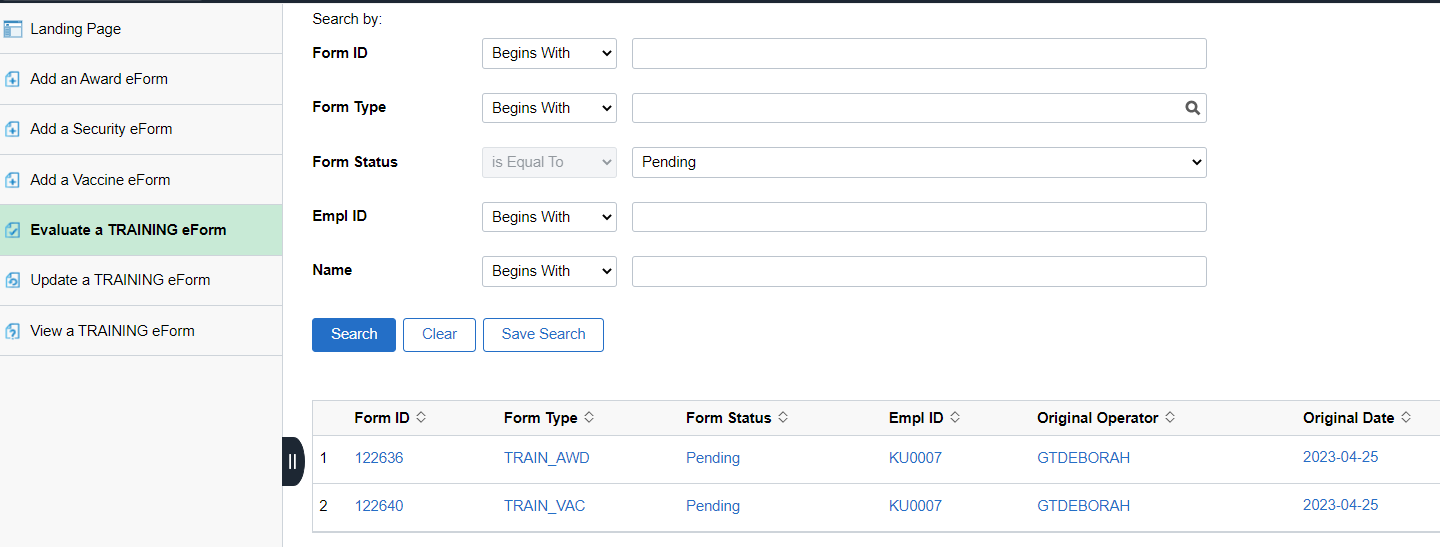
- To save this search, click “Save Search”.
- Enter a name for your search and click Save.
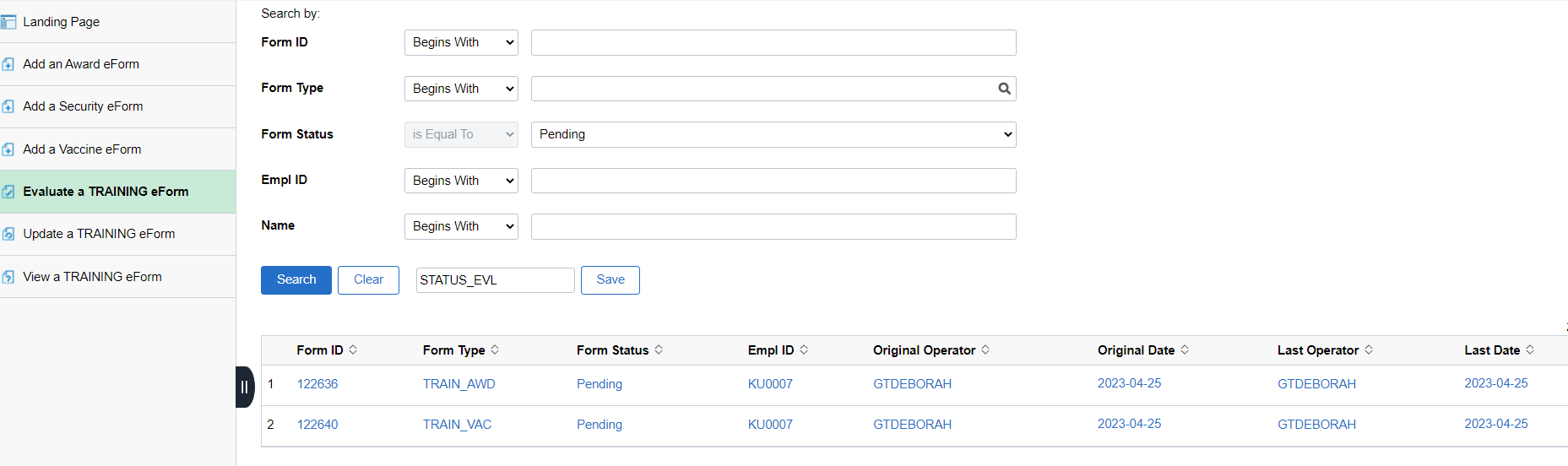
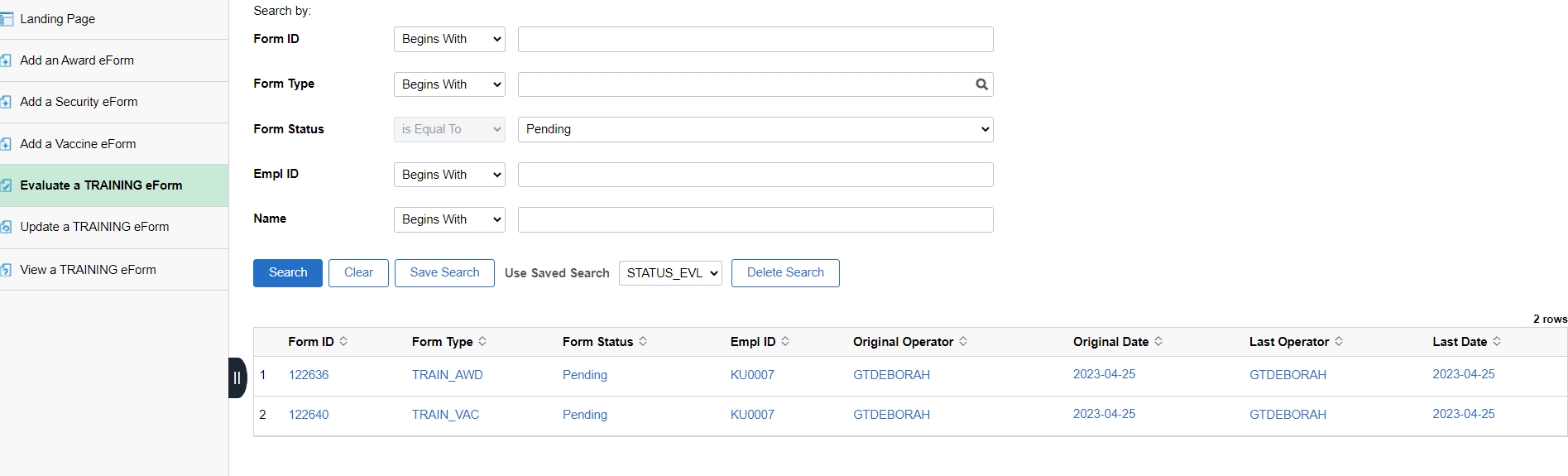
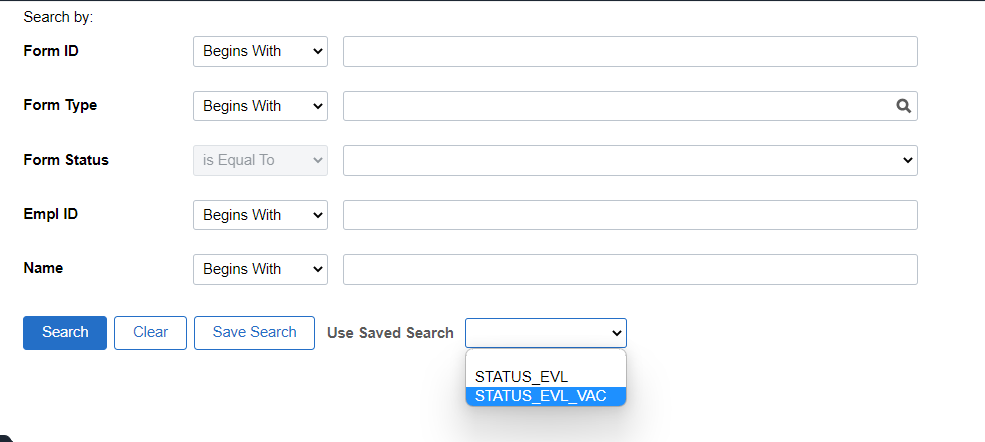
- Once the search is saved a “Use Saved Search” dropdown will display on the page.
- When you choose your Saved search from the dropdown the search results will display. These results will update as forms are submitted and/or processed.
Modifying a Saved Search
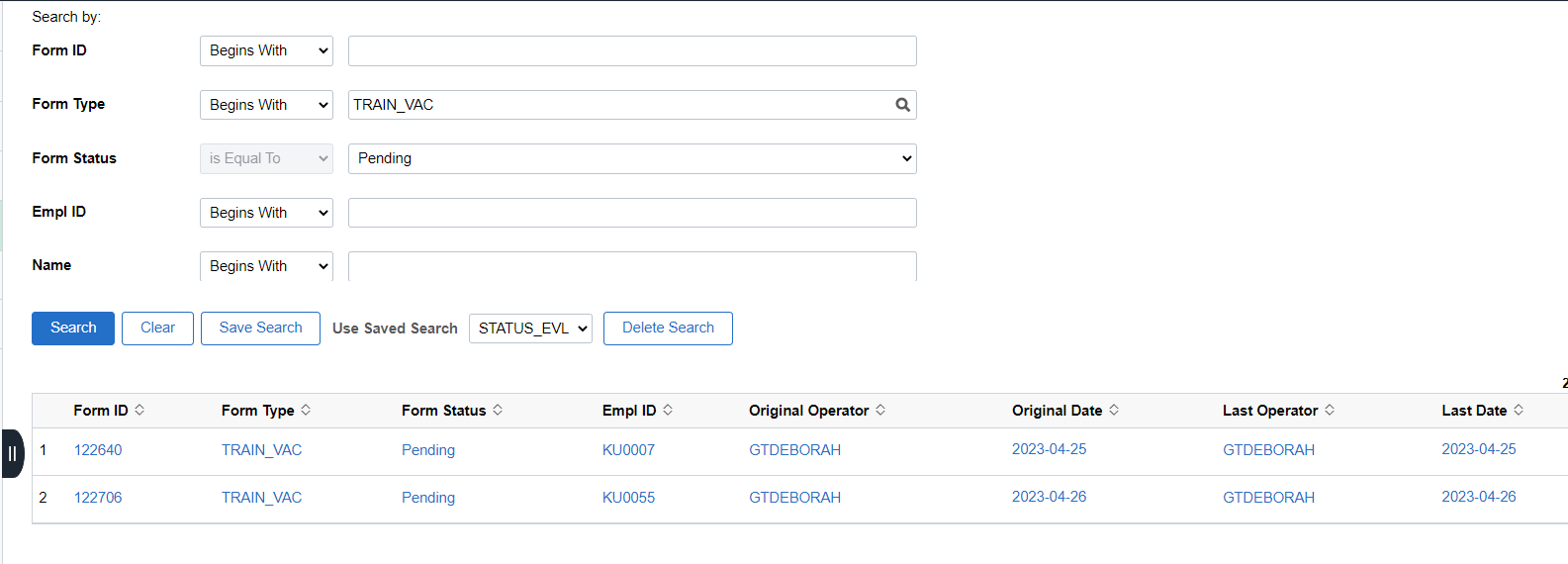
You can add criteria to a saved search to refine results and save to add a new Saved Search
- Add additional search criteria and click Search
- The results returned will be modified based on the criteria chosen.
- To save the modified search click “Save Search”
- The box to enter the name of the search will display.
- Enter the name of the new search and click save.
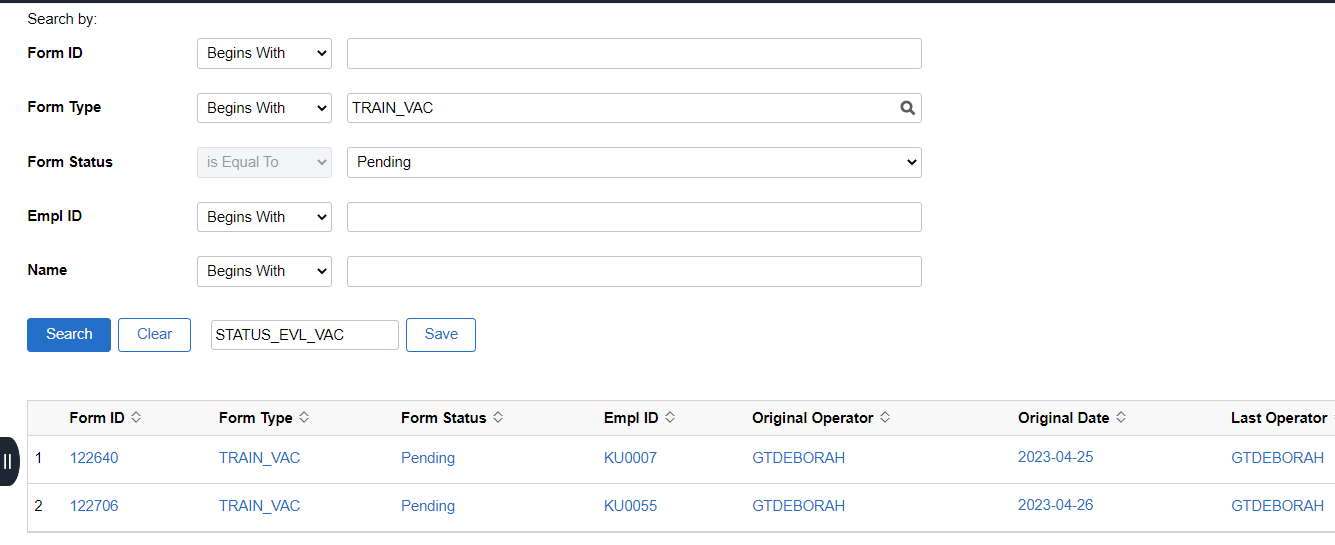
- Your new Saved Search will be available in the dropdown
Deleting a Saved Search
- From the search page choose the Saved Search.
- The Delete Search button will display. Click Delete Search.
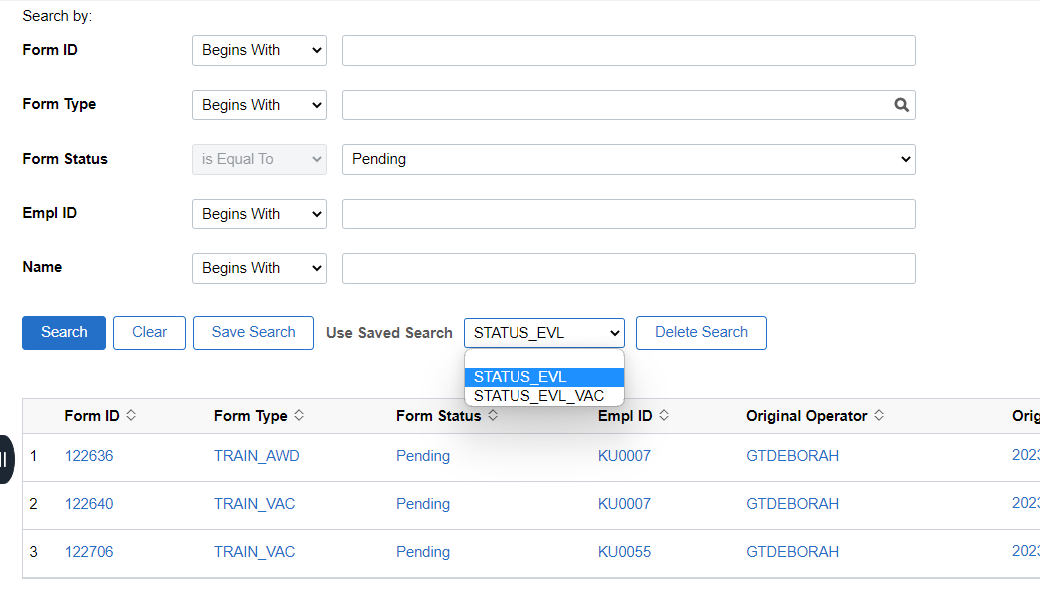
- The Saved Search will no longer be available.
Note: You can read about setting up Search Records for tasks in the Search Records By Task document in the Form Setup folder.